Auto Top-up
Automatically add credit to your account before your balance runs low to prevent workload interruptions.
Auto Top-up automatically adds credit to your Hyperstack account before your balance runs low, helping prevent interruptions to your active workloads. This page explains how Auto Top-up works and walks you through enabling, editing, and disabling it from the Hyperstack console.
How Auto Top-up Works
Auto Top-up automatically replenishes your Hyperstack credit balance by initiating a charge to your saved payment method via Stripe when it reaches your configured credit balance threshold. This helps prevent service interruption for your running workloads.
To configure Auto Top-up, you define:
- Credit Balance Threshold – The credit balance level that determines when an automatic charge is triggered. The allowed range depends on your account type. See Supported Account Types & Credit Balance Threshold Rules.
- Auto Top-up Amount – The amount of credits added each time the threshold is reached. The minimum amount is $25 USD and must be entered as a whole number.
When your credit balance reaches or falls below the configured threshold, Hyperstack initiates a charge to your saved payment method via Stripe and credits your account accordingly. The Auto Top-up Amount remains fixed for each charge and does not adjust based on usage, so automatic charges may occur multiple times within a billing period if the threshold is reached more than once.
Applicable tax is calculated by Stripe and added to the Auto Top-up Amount, so the total charged to your payment method can be higher than the credit added to your account. For details, see Taxes and Jurisdiction-Based Charges.
Stripe securely manages and stores your payment method for future charges unless updated or removed. All charges are processed in USD. For details, see Payments.
Example
- Credit balance threshold: $50
- Auto Top-up Amount: $100
When your credit balance reaches or falls below $50, Hyperstack automatically initiates a charge to your saved payment method via Stripe and adds $100 to your balance. If tax applies in your jurisdiction, the amount charged is $100 plus tax, and the credit added to your balance stays $100.
Best Practices
To ensure reliable billing and avoid payment issues:
- Set thresholds and top-up amounts based on your actual usage patterns.
- Review your Payment History and Resource Activity in Hyperstack to understand how frequently your credit balance is depleted.
- Avoid configurations that trigger frequent small top-ups.
A high number of rapid or repeated transactions may be flagged by payment providers as suspicious activity, which can result in failed payments or temporary payment restrictions.
Supported Account Types & Credit Balance Threshold Rules
The account types eligible for Auto Top-up and the credit balance threshold range you can set both depend on your account's billing configuration. Auto Top-up is available for prepaid, postpaid, and premium postpaid accounts.
The allowed credit balance threshold range is enforced based on your account type:
| Account Type | Allowed Credit Balance Threshold Range |
|---|---|
| Prepaid | $0 to $10,000 |
| Postpaid | -$10,000 to $10,000 |
| Premium Postpaid | -$20,000 to $20,000 |
These limits reflect your account's billing configuration and approved credit limits.
For prepaid accounts, the minimum credit balance threshold is $0. For postpaid and premium postpaid accounts, the minimum threshold is based on your configured credit limit and may be negative.
Negative Credit Balance Thresholds (Postpaid and Premium Postpaid)
Postpaid and premium postpaid accounts can configure negative credit balance thresholds, provided the value remains within the approved credit limit. This allows Auto Top-up to trigger even when the credit balance enters an approved negative range.
Example
- If your permitted credit limit is -$200, you can configure a credit balance threshold such as -$150.
- You cannot set a threshold below your authorized negative credit limit.
Manage Auto Top-up
Auto Top-up can be enabled, updated, or disabled at any time from the Billing section of the Hyperstack console. Configurations are organization-specific and apply only to the currently selected organization.
If you are not the organization owner, confirm your account has the required Auto Top-up permissions before attempting to enable, edit, or disable Auto Top-up.
Enable Auto Top-up
To enable Auto Top-up:
-
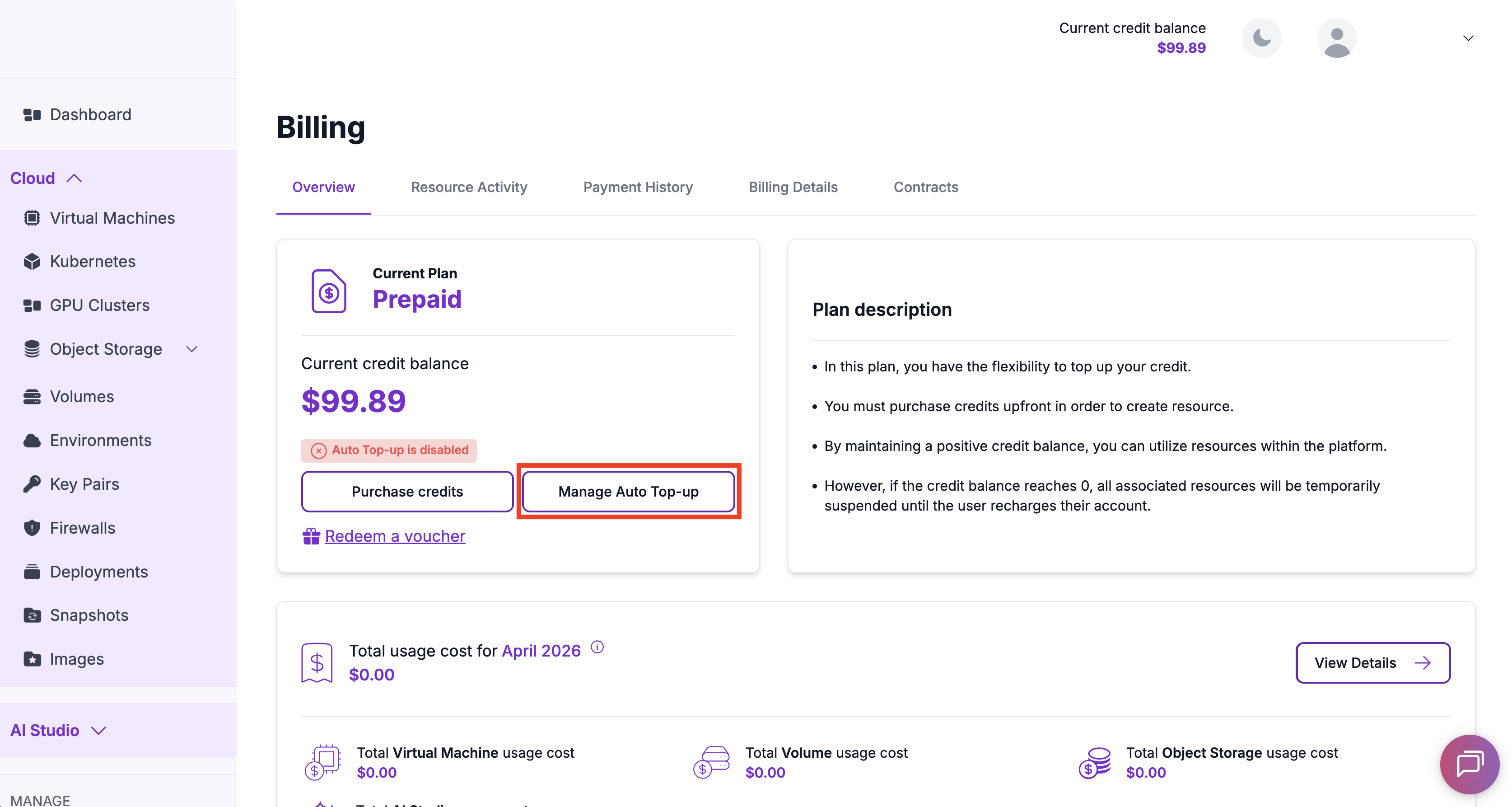
Navigate to the Billing - Overview page in the Hyperstack console.
-
Click Manage Auto Top-up.
-
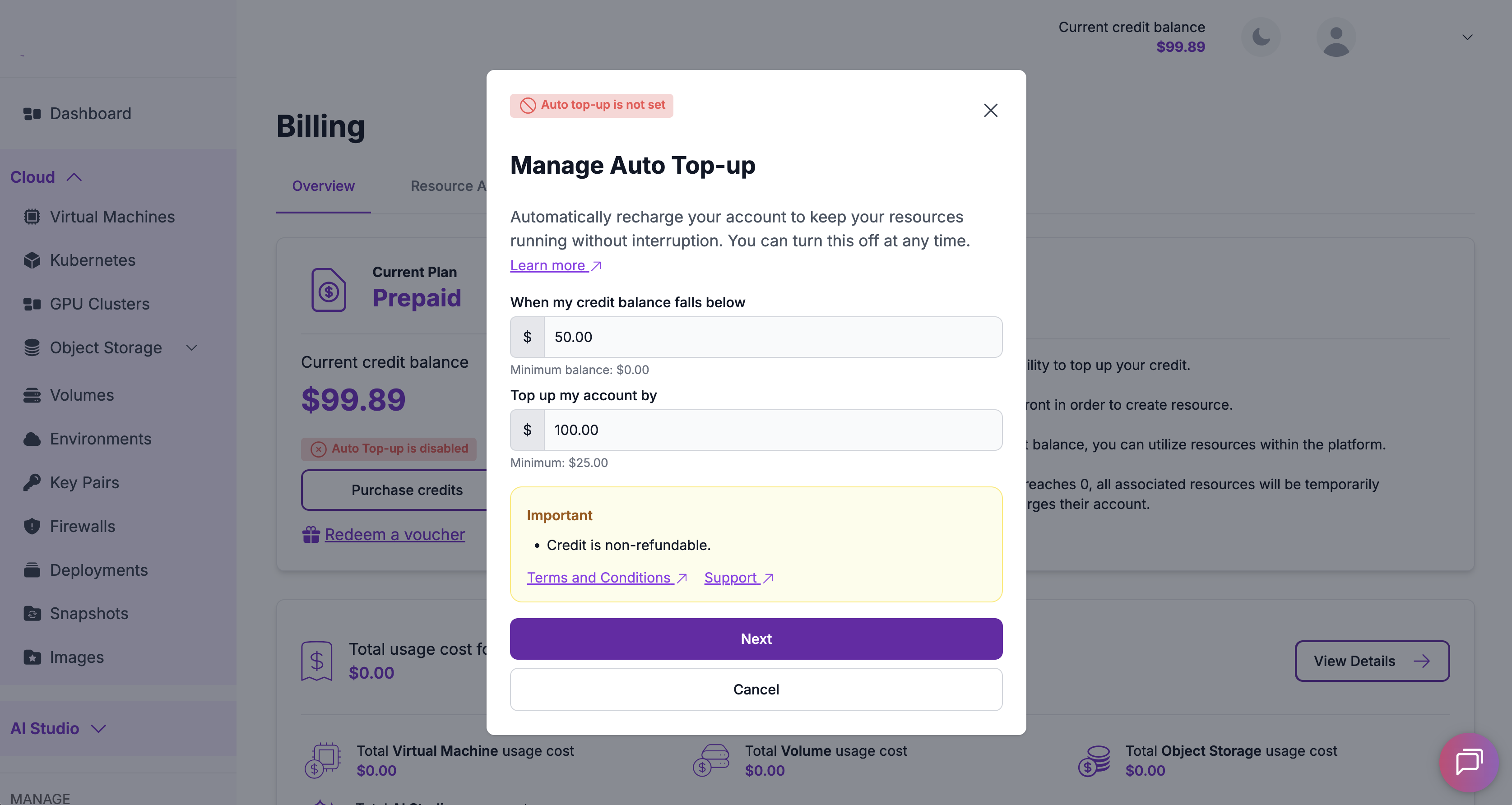
In the Manage Auto Top-up modal, enter the following configuration values:
a. When my credit balance falls below – The credit balance threshold at which an automatic charge is triggered.
- The allowed range depends on your account type. See Supported Account Types & Credit Balance Threshold Rules.
b. Top up my account by – The fixed amount that will be added to your account each time the threshold is reached.
- Minimum $25 USD and must be a whole number.
c. Click Next.
-
In the Consent Auto Top-up Setup modal, review your configuration, then click I agree & confirm to complete activation.
If required, you will be redirected to Stripe to securely authenticate your payment method.
Once enabled, the status will display as Active on the Billing - Overview page.
By enabling Auto Top-up, you authorize Hyperstack to automatically charge your selected payment method when your configured credit balance threshold is reached. Charges continue under your saved configuration until you disable the feature. Use of Auto Top-up is governed by the Hyperstack Terms and Conditions.
Credits purchased through Auto Top-up are non-refundable.
A confirmation email is sent immediately after activation.
Edit Auto Top-up Settings
You can update your configuration at any time to reflect changes in usage or budget requirements.
Editable Settings
- Credit Balance Threshold – The credit balance level that triggers an automatic charge.
- Auto Top-up Amount – The fixed amount credited each time the threshold is reached (minimum $25 USD, whole numbers only).
- Payment Method – The saved payment method that will be used for automatic charges.
To Edit Settings
- Navigate to the Billing - Overview page.
- Click Manage Auto Top-up.
- Update your values.
- Confirm changes.
Updated settings apply immediately.
An email confirmation is sent whenever configuration changes are saved.
Disable Auto Top-up
You can disable Auto Top-up at any time. Disabling takes effect immediately and prevents any future automatic charges.
- Navigate to the Billing - Overview page.
- Click Manage Auto Top-up.
- Select Disable Auto Top-up.
- Confirm the action.
After disabling:
- No further automatic charges will be made.
- The feature status updates to Disabled immediately.
Disabling Auto Top-up prevents future automatic charges but does not reverse previously successful transactions.
A confirmation email is sent upon successful cancellation.
Payment Processing & Retry Logic
Auto Top-up automatically attempts a charge when your configured credit balance threshold is reached.
Successful Payment
- The configured Auto Top-up Amount is credited immediately upon payment confirmation.
- The updated credit balance is reflected on the Billing - Overview page.
- A confirmation email is sent.
Failed Payment
If a payment attempt fails:
- Your credit balance remains unchanged.
- The system automatically retries the payment.
- A notification email is sent.
Failed Payment Retry Process
- Up to 3 payment attempts are made.
- Each retry occurs 24 hours after the previous attempt.
- Retries stop once payment succeeds or after the third failed attempt.
If all retry attempts fail and your credit balance remains insufficient, active resources may be suspended. No further automatic charges will be attempted until the issue is resolved. You must update your payment method to resume automatic payments.
Notifications
Email notifications are sent for the following events:
- Successful Auto Top-up charges
- Failed Auto Top-up charges
- Payment method updates
- Configuration updates
- Auto Top-up disabled
Notifications are sent to:
- The Organization Owner
- The user who enabled or modified Auto Top-up
Each email includes relevant organization details for clarity and auditing. Successful charge emails also include a link to your invoice.
These notifications are required and cannot be turned off. They appear under the Auto Top-Up category on the Notification Settings page, each carrying a Required badge with its toggle locked on. For how required and optional notifications work, see Email Notification Preferences.
Permissions
Auto Top-up actions are protected by resource-level permissions. The organization owner has full access by default. Members (non-owners) must be assigned a User Role that includes the required Auto Top-up permissions. Learn how to create and assign user roles here.
To determine whether your account is an owner or member, visit the My Organization page in Hyperstack.
The following permissions can be added to a User Role and assigned to the organization member, based on the actions they need to perform:
| Permission | UI Control | Grants access to |
|---|---|---|
billing:auto-topup-create | Manage Auto Top-up button | Creating a new Auto Top-up configuration |
billing:auto-topup-view | Auto Top-up card on the Billing dashboard | Viewing the current configuration and transaction history |
billing:auto-topup-status | Status indicator on the Billing page | Viewing whether Auto Top-up is Active, Disabled, or pending setup |
billing:auto-topup-update | Edit button | Modifying the credit balance threshold and Auto Top-up amount |
billing:auto-topup-disable | Disable Auto Top-up button | Turning off Auto Top-up |
billing:auto-topup-payment-method-portal | Update payment method button | Opening the Stripe portal to change the saved card |
Users assigned the built-in Read-only access policy (policy:ReadPermissions) automatically receive billing:auto-topup-view and billing:auto-topup-status, allowing them to view Auto Top-up configuration and status but not create, modify, or disable it.
Payment History & Audit Logs
Auto Top-up attempts, whether successful or failed, are recorded on the Billing - Payment History page in Hyperstack.
Each entry includes:
- Type:
Auto Top-up - Status:
Processing,Complete,Cancelled, orFailed - Date and time
- Amount charged
- A receipt link for completed transactions, which downloads your Hyperstack invoice as a PDF
All Auto Top-up attempts are recorded for transparency and auditing purposes.
Frequently Asked Questions
Will Auto Top-up prevent my workloads from being interrupted?
Auto Top-up helps prevent service interruption by automatically replenishing your credit balance when it reaches your configured threshold. As long as your saved payment method is valid and charges succeed, your active resources continue running without you needing to manually add credit to your account.
How do I decide what to set my Auto Top-up Amount to?
We recommend setting your threshold and top-up amount based on your actual usage patterns. Review your Payment History and Resource Activity in the Hyperstack console to understand how quickly your credit balance depletes, then size your top-up amount accordingly. We also recommend avoiding configurations that trigger frequent small top-ups, as a high number of rapid or repeated transactions may be flagged by payment providers as suspicious activity.
Can I disable Auto Top-up at any time?
Yes. Navigate to the Billing - Overview page, click Manage Auto Top-up, and select Disable Auto Top-up. Disabling takes effect immediately and prevents any future automatic charges. Previously successful transactions are not reversed.
Will I know when Auto Top-up charges my account?
Yes. Email confirmations are sent for every successful charge, failed charge, configuration update, and when the feature is disabled. Notifications go to the Organization Owner and the user who enabled or modified the setting. These emails are mandatory and cannot be disabled.
Can I change my credit balance threshold or top-up amount later?
Yes. Navigate to the Billing - Overview page and click Manage Auto Top-up to update your credit balance threshold, top-up amount, or saved payment method at any time. Updated settings apply immediately.
What happens if a payment attempt fails?
Hyperstack automatically retries the charge up to 3 times, with each attempt 24 hours apart. You receive an email notification for each failure. If all retries fail and your balance remains insufficient, active resources may be suspended.
Are credits purchased through Auto Top-up refundable?
No. Credits added through Auto Top-up are non-refundable. We recommend setting thresholds and top-up amounts that align with your actual usage patterns to avoid over-provisioning. Additionally, Auto Top-up can be disabled at any time to prevent future automatic charges.