Redeem Voucher
How vouchers work, who can redeem them, and how the associated credit is applied.
This document provides an overview of how Hyperstack vouchers work, who can redeem them, how the associated credit is applied, and detailed steps for redeeming a voucher in Hyperstack.
Voucher Rules and Account Credit Behavior
Before redeeming a voucher, review the following details:
- One-Time Use: Each voucher is single-use only per organization. If the same code is entered more than once within the same organization, an error message stating "Voucher already redeemed" will be displayed.
- Eligible Users: Both organization members and owners can redeem vouchers. The credited amount is added to the organization account balance that the redeeming user currently has selected in Hyperstack.
- Organization-Specific Credit: Voucher redemptions are organization-specific. If you belong to multiple organizations, ensure that the appropriate organization is selected prior to redemption. The credit will be applied to your current organization at the time the voucher is redeemed.
- Tracking Redeemed Vouchers: Successfully redeemed vouchers appear in the Payment History section in Hyperstack.
- Usage of Voucher Credit: Voucher credit is treated the same as credit added via other payment methods. It can be used without restriction to deploy any supported Hyperstack resources, including Virtual Machines, Clusters, Volumes, and more.
Redeem a Hyperstack Voucher
To apply a Hyperstack voucher and credit your organization's balance, follow the steps below:
Before redeeming a voucher, if your account belongs to multiple organizations, please ensure your currently selected organization is the one you intend to add the credit to.
-
Open Billing Settings
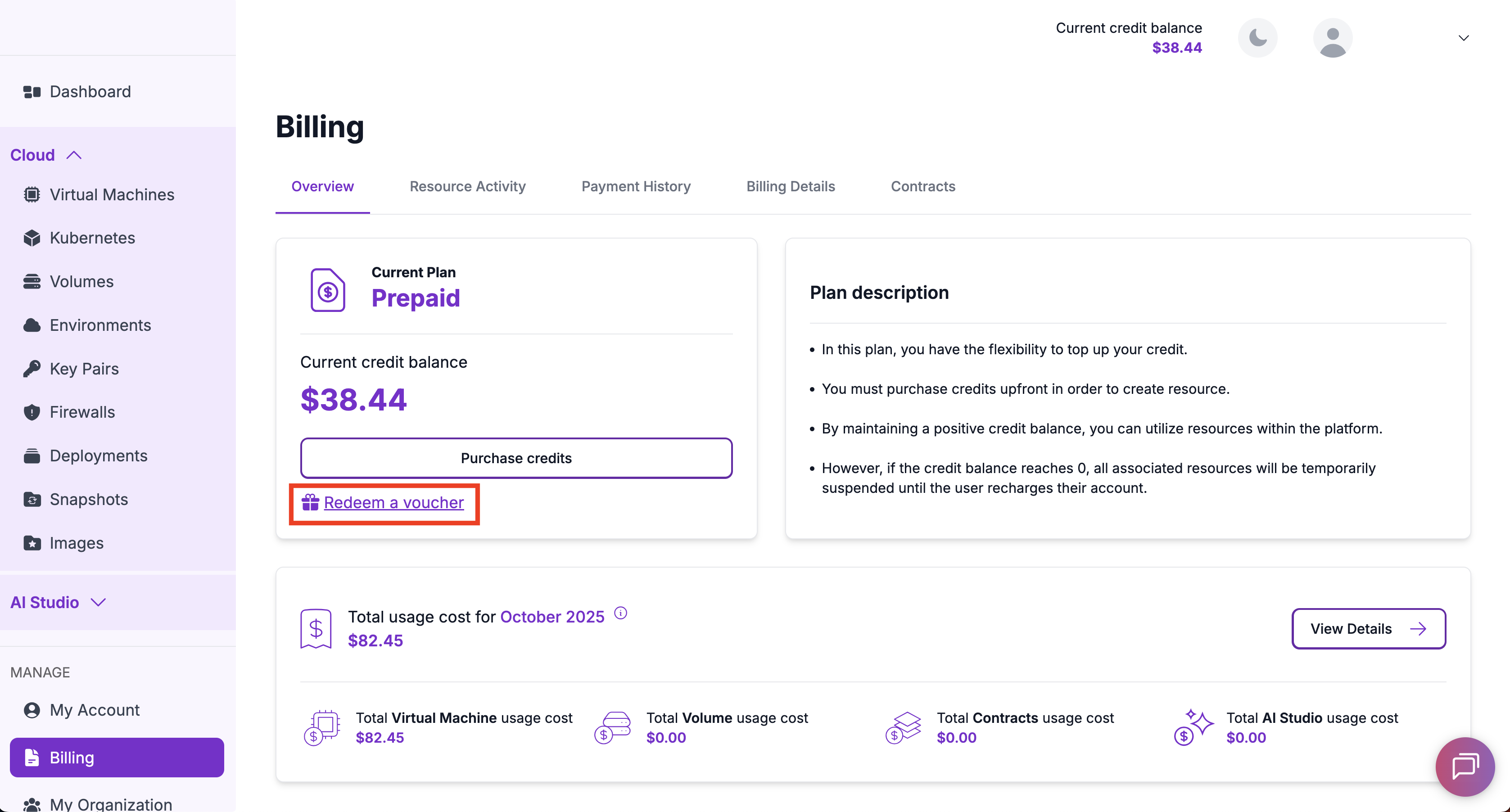
Sign in to Hyperstack (or create an account). From the left-hand navigation menu, click Billing under the Manage section to open the Billing page.
-
Access the Redeem Voucher Modal
On the Billing - Overview page, click Redeem a voucher located below the Purchase credits button. This will open the Redeem Voucher modal.
-
Enter and Redeem Code
Enter your 10-digit voucher code exactly as it appears, then click Redeem to apply the credit to your organization's balance.
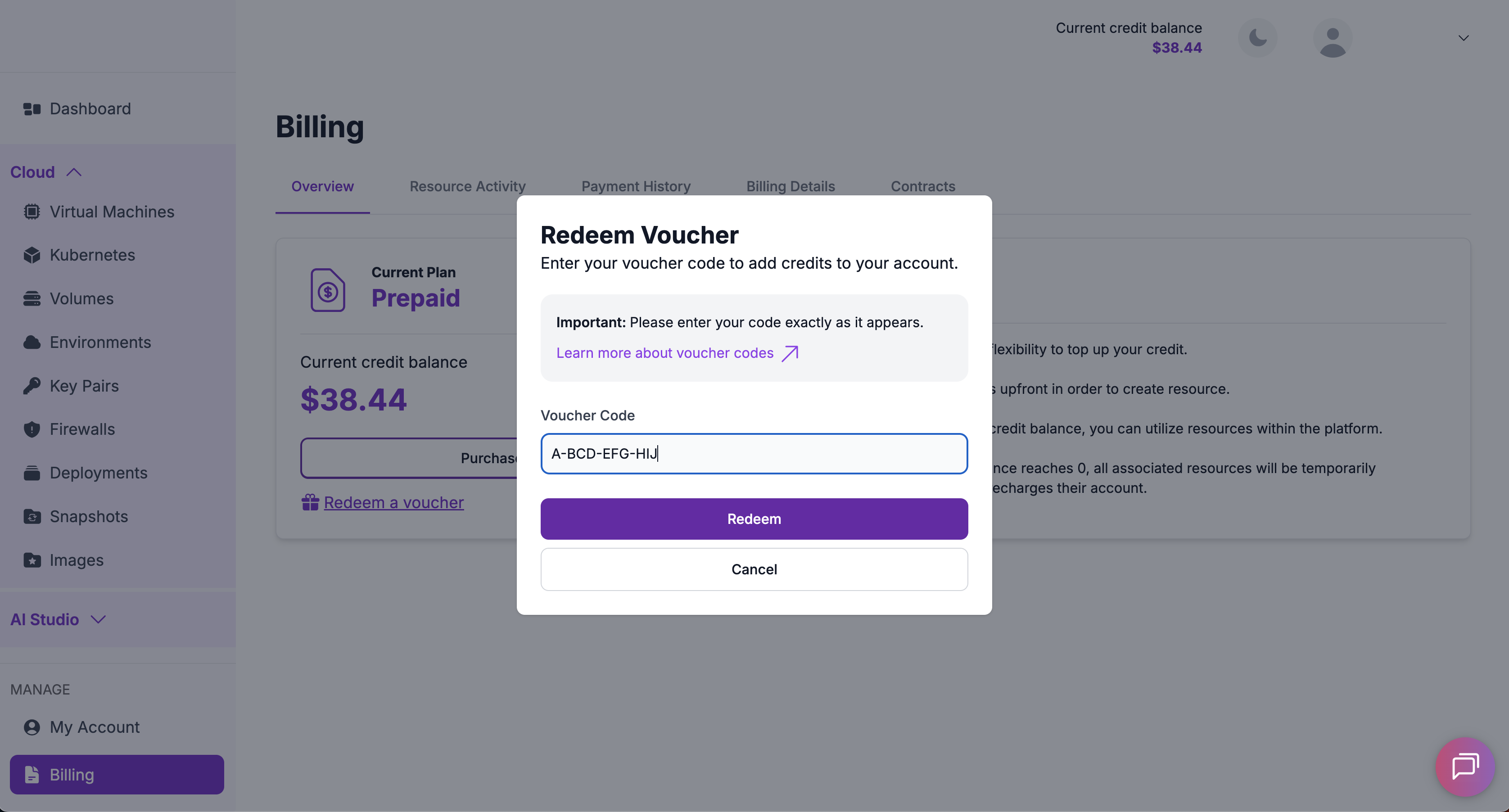
A confirmation message will appear once the voucher has been successfully redeemed. This message will confirm that the credit has been added to your account and will display your updated total account balance. You can also view successfully redeemed vouchers in the Payment History section in Hyperstack.
Need Help?If you encounter any issues redeeming your voucher or have questions, please contact support.
-
If You're New to Hyperstack
Use your newly added credit to get started with deploying resources in Hyperstack:
- Launch your first Virtual Machine: Getting Started with VM Deployment
- Deploy your first Kubernetes Cluster: Kubernetes Cluster Deployment
- Use AI Studio to run inference, generate images, and test models in the playgrounds.