Text Playground
An interactive chat-style interface for running inference with the models in the AI Studio catalog.
The Hyperstack AI Studio Text Playground is an interactive chat-style interface for testing and exploring model behavior. You can run inference with any model in the catalog, apply system prompts, and tweak generation parameters in real time. With image-capable (Image-to-Text) models, you can also attach an image to your prompt and have the model describe or answer questions about it. It also supports side-by-side model comparisons, making it easy to evaluate the effects of model or prompt changes.
The Text Playground features a persistent chat session, which stores the conversation history, selected model, prompts, and parameter settings. If you refresh the page or log out and return later, your settings and context will be retained. However, note that settings are only saved after you send a message. You can also browse, search, rename, and reopen all of your past conversations from the History tab.
To generate or transform images, see the Image Playground documentation.
How to Use the Text Playground
Follow these steps to run inference in the Text Playground.
-
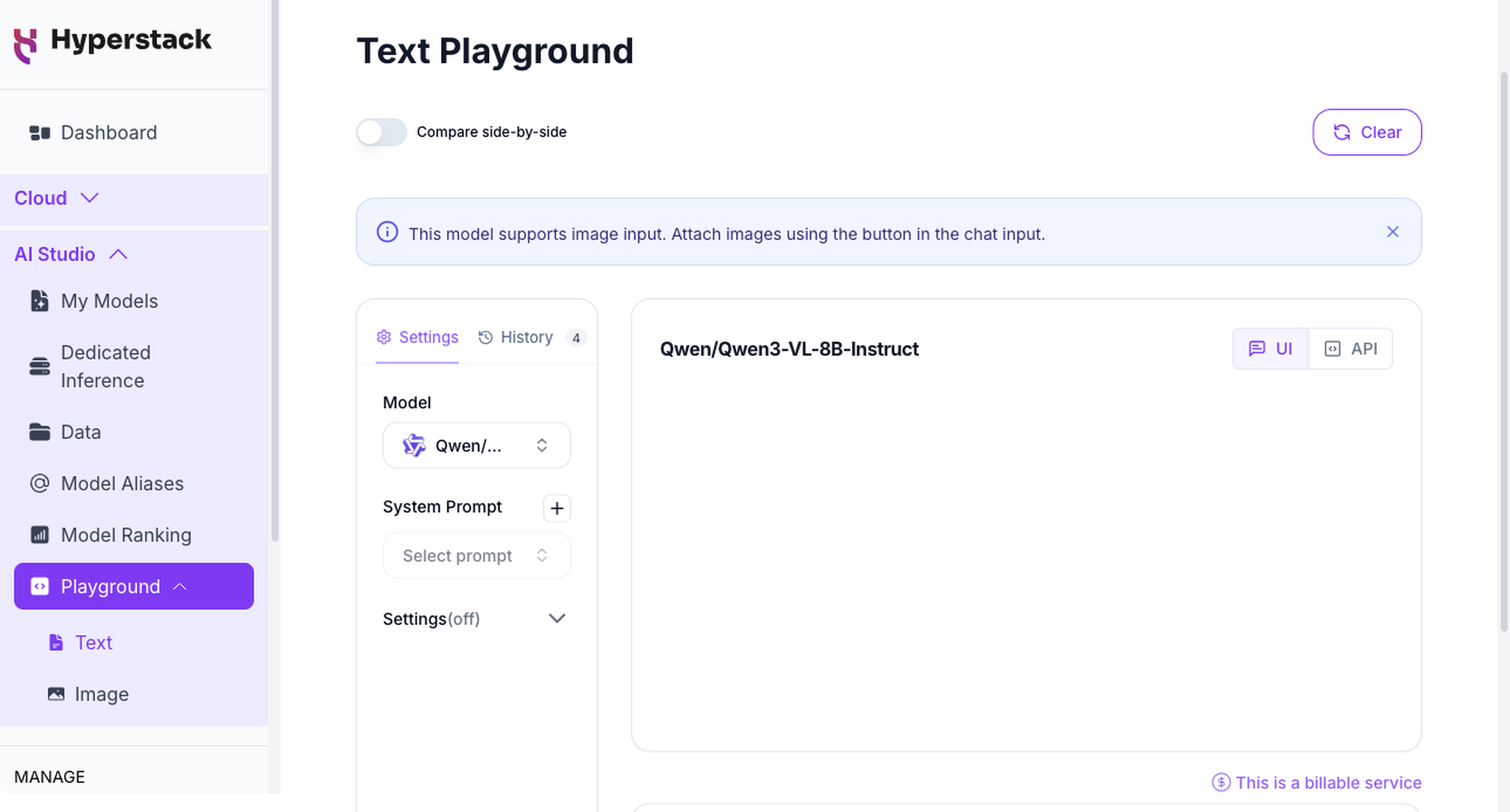
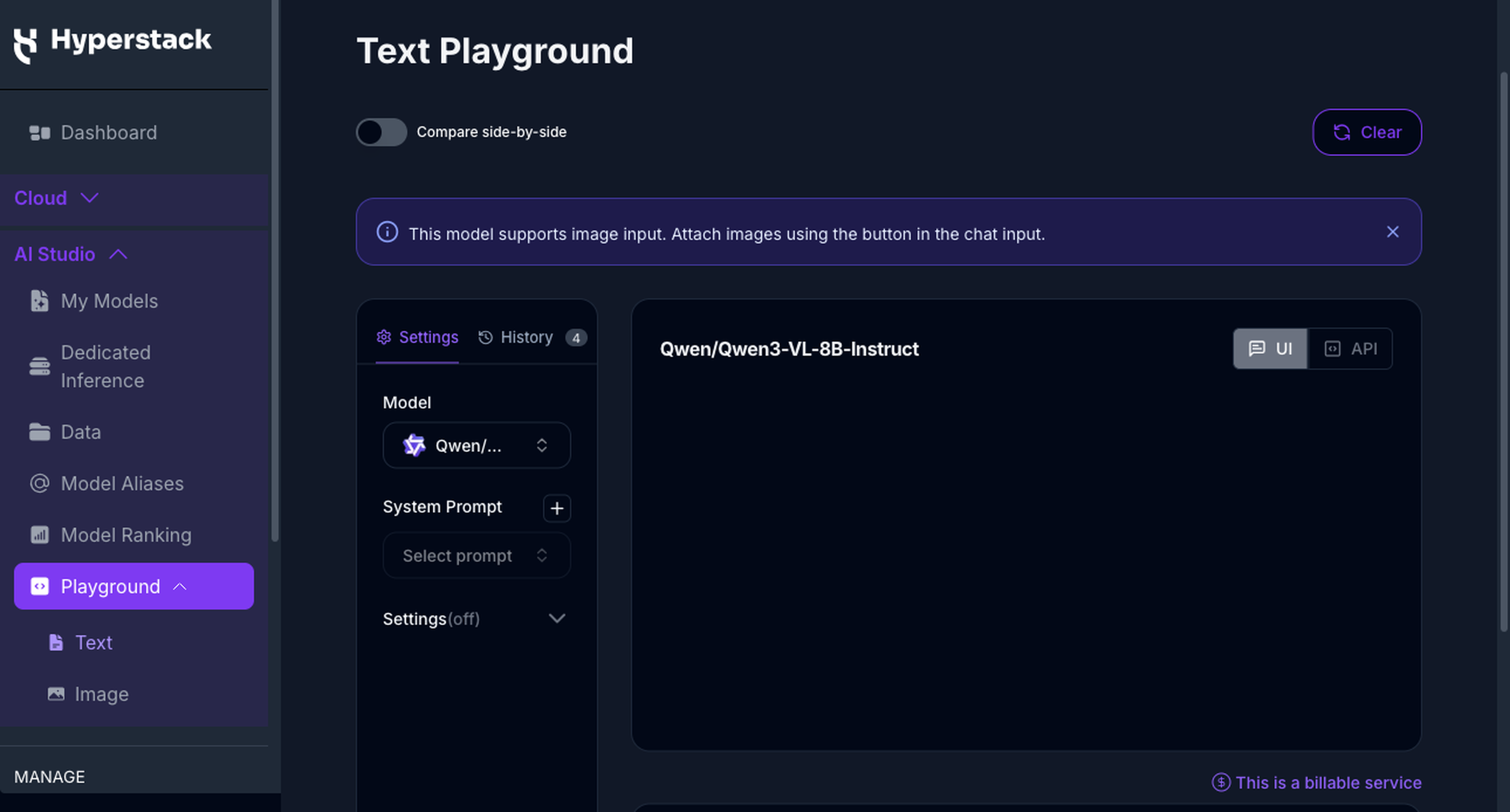
Open the Text Playground
Navigate to the Text Playground page from the Hyperstack AI Studio.
-
Select a Model
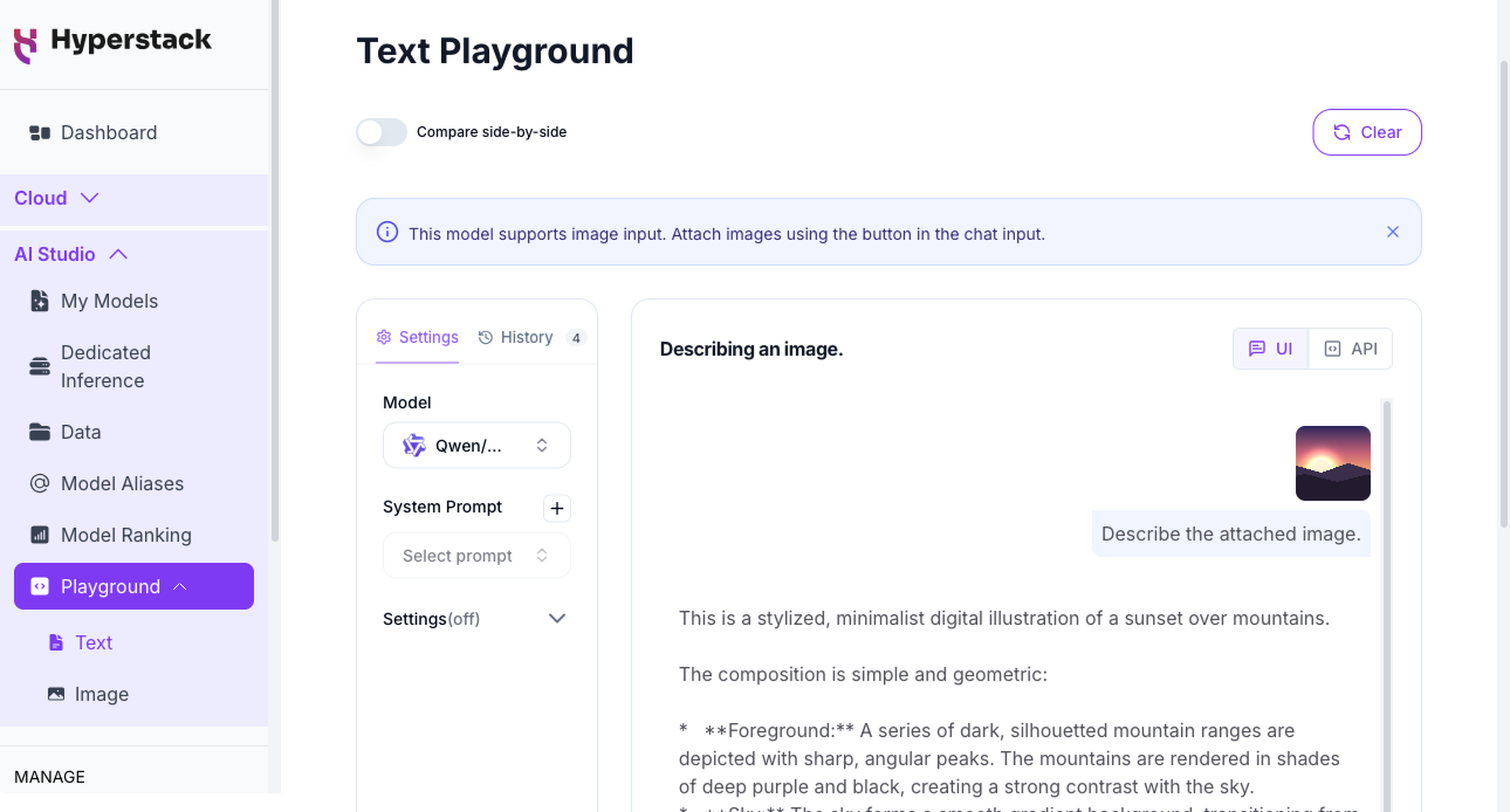
The Settings tab holds the model, system prompt, and generation parameters. Select a model from the dropdown. If you select an Image-to-Text model, you can also attach an image in the chat input, as described in Attach an Image.
-
(Optional) Enter a System Prompt
To guide the model's behavior, click the + next to System Prompt, enter a prompt name and the instructions, then click Save. Select your saved prompt from the Select prompt dropdown to apply it.
-
(Optional) Adjust Text Playground Parameters
Expand the Settings section and adjust the model's generation behavior using the sliders and fields below. If you don't modify a parameter, the default value shown in the table will be used.
Parameter Description Default Value Value Range Max Tokens Limits the maximum number of tokens in the model's response. Combined with the input, the total must stay within the model's context length. null1–4095Temperature Controls randomness in the model's output. Lower values (e.g. 0.1) produce more focused, deterministic responses, while higher values (e.g.0.9) produce more creative or varied outputs.1.00.0–2.0Top-P Enables nucleus sampling by restricting token selection to a subset with cumulative probability ≤ top_p.null0.0–1.0Top-K Limits token sampling to the top Kmost likely options.-1-1–200Presence Penalty Penalizes tokens based on whether they appear in the prompt. Higher values encourage the model to introduce new concepts. 0.0-2.0–2.0Repetition Penalty Penalizes repeated tokens in the model's output. Higher values reduce the likelihood of repeating the same phrases. 1.00.01–2.0 -
Enter a Prompt
Type your query into the text input box (and attach an image if you selected an Image-to-Text model) and hit Enter to get a response.
The total number of tokens in your input (system prompt, prior messages, and current prompt) plus the model's generated output must not exceed the maximum supported context length for the model you are using.
Each model's context length is returned as supported_context_len by the List base models API.
Attach an Image
When you select an Image-to-Text model, you can attach an image to your message and have the model describe it or answer questions about it.
-
Select an Image-to-Text model
In the Settings tab, choose a model with the Image-to-Text badge. For the full list of image-capable models, see Image-to-Text Models.
-
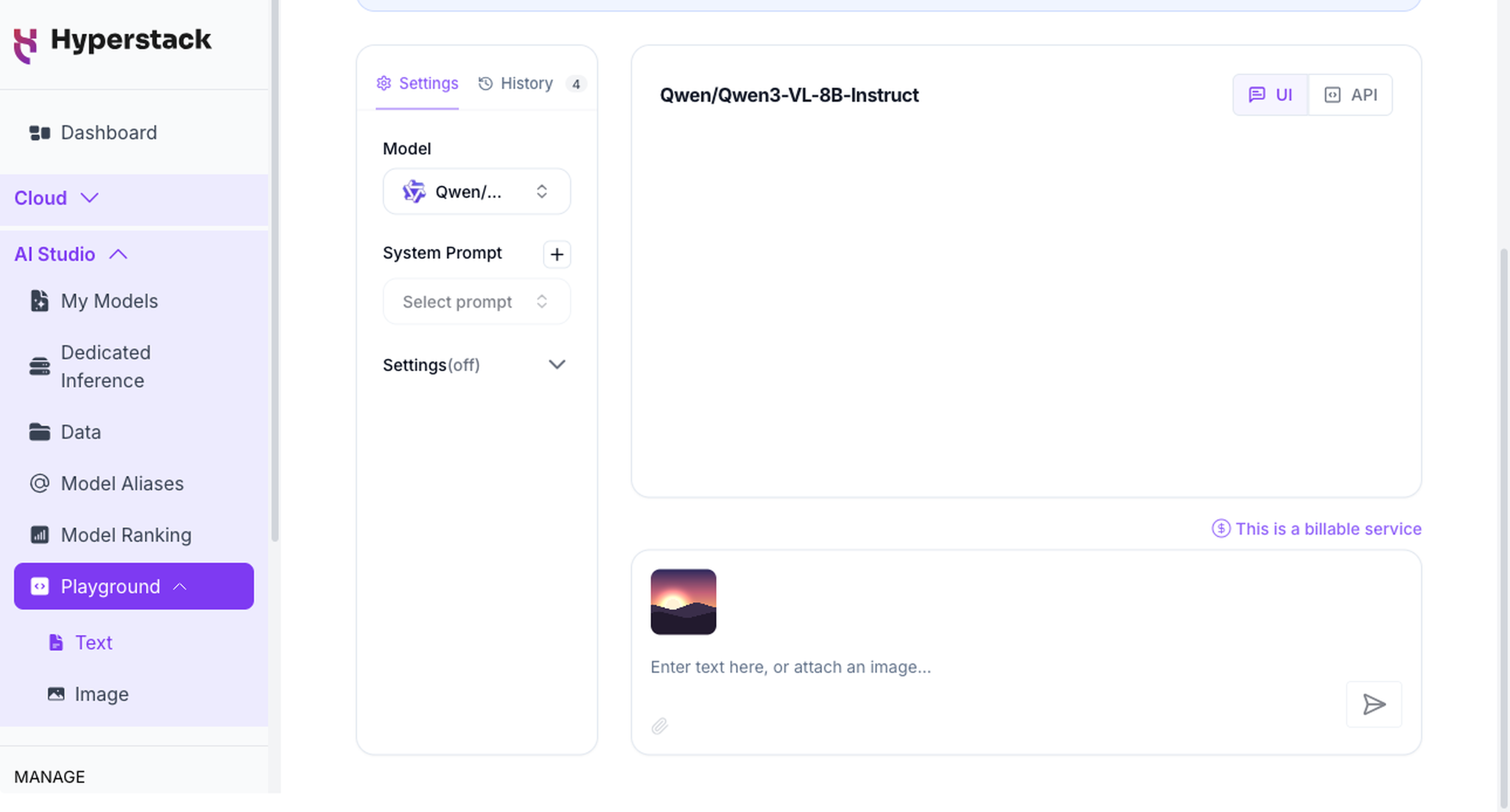
Add an image
Add an image to your message using any of these methods:
- Click the attachment (paperclip) button in the chat input and choose a file.
- Drag and drop an image onto the chat input.
- Paste a copied image.
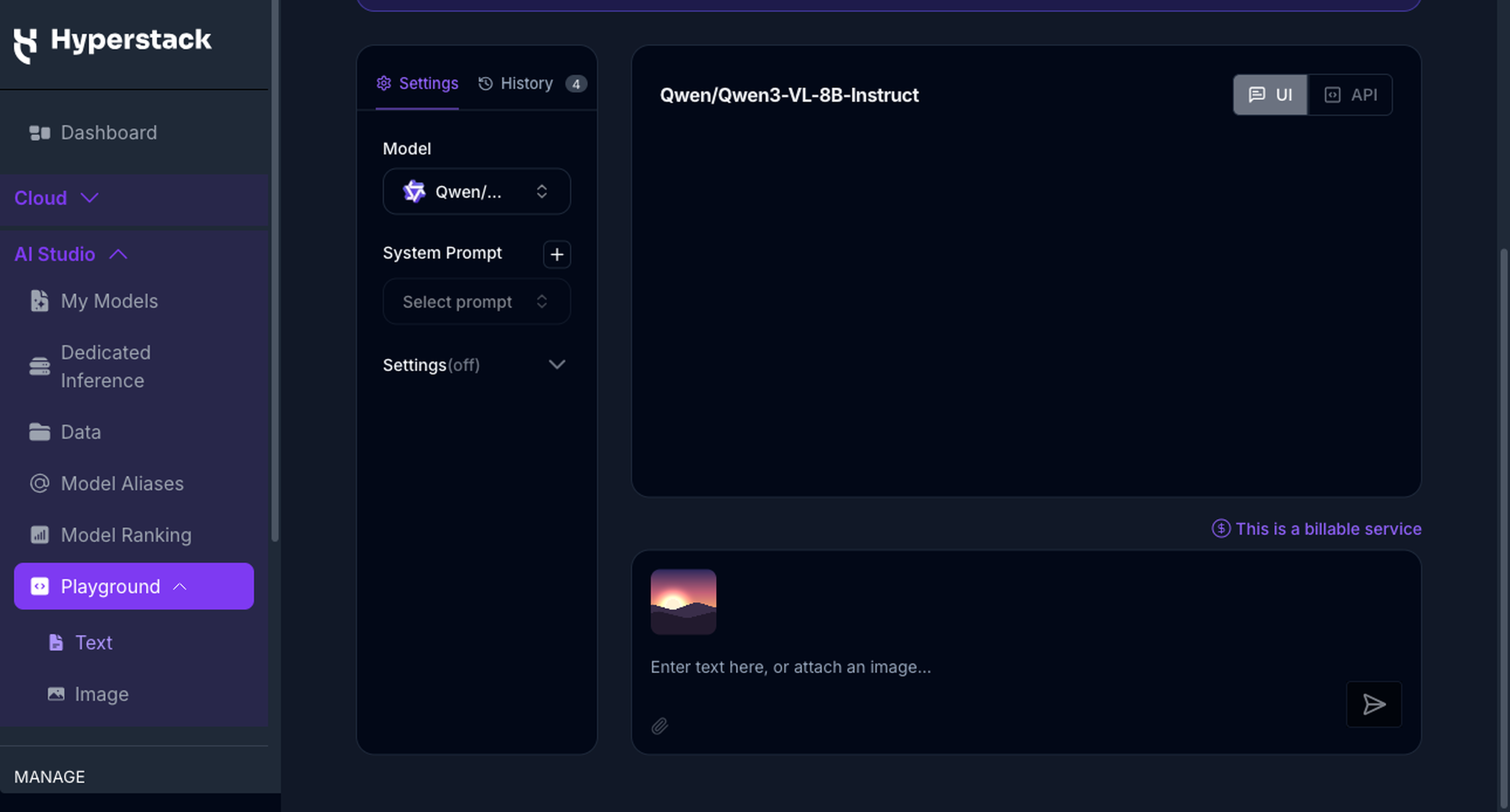
A thumbnail preview appears above the input, with a control to remove it before sending. You can attach one image per message, in JPEG, PNG, WebP, or GIF format.
-
Enter a prompt and send
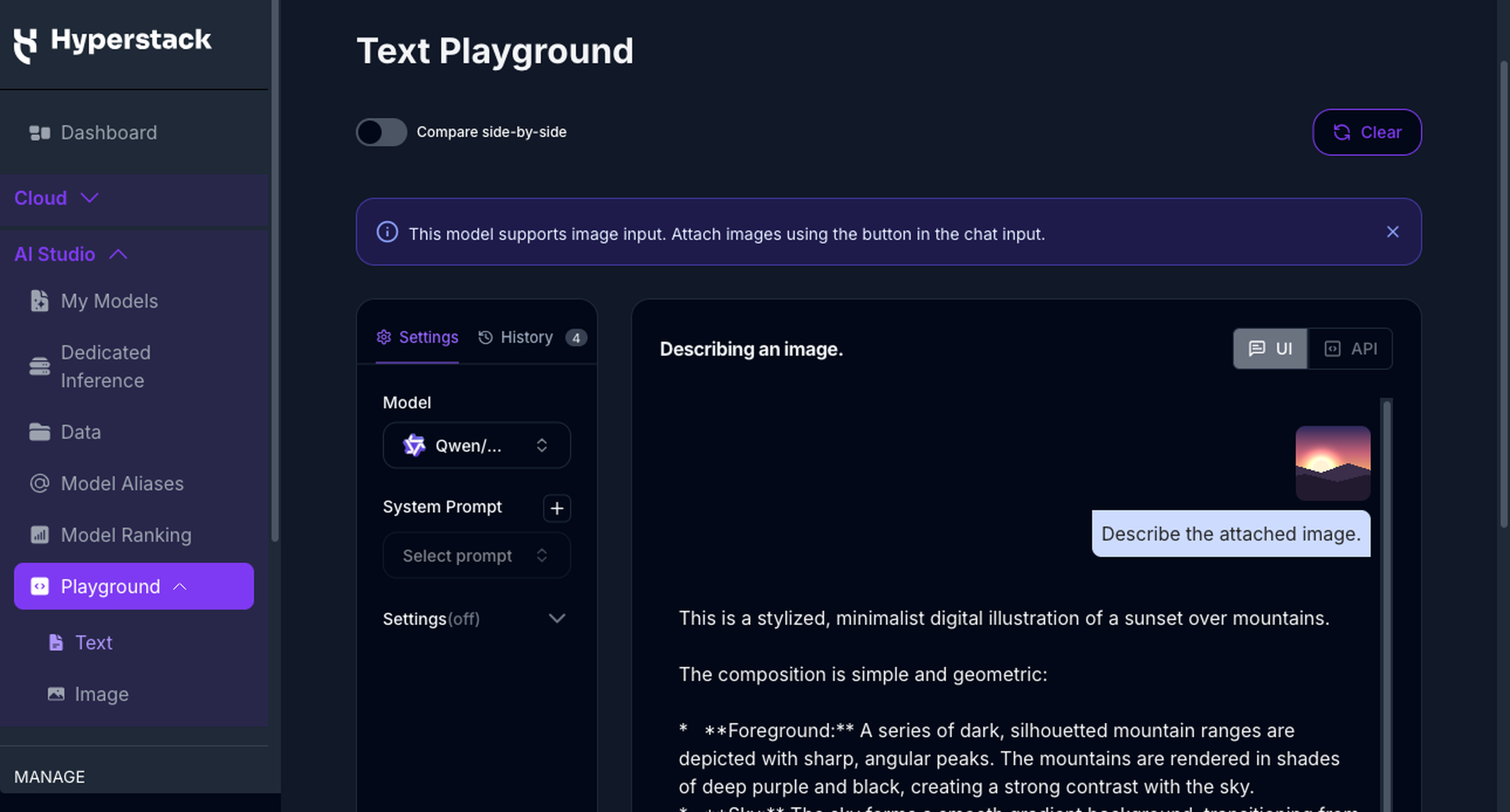
Type a prompt such as Describe the attached image and press Enter. Your image appears inline with your message, and the model responds based on both the image and your text.
Running inference with image-capable models is a billable service, charged per input and output token like other Text Playground inference. You can view per-model token pricing on the Base Models Pricing tab, and track your usage under Billing.
Ground Responses with a Knowledge Base
Select a Knowledge Base to have the model answer from your own documents instead of its training data alone. Only Knowledge Bases that have finished indexing appear in the selector, with the most recently updated listed first.
Once you select one, replies carry numbered citation markers. Hover over a marker to see the source file, an excerpt of the passage, and how relevant it was scored. Your selection stays with the conversation until you change it, and sending a message without one selected runs inference normally.
For creating Knowledge Bases, adding and removing files, and tracking indexing, see the Knowledge Bases documentation.
Conversation History
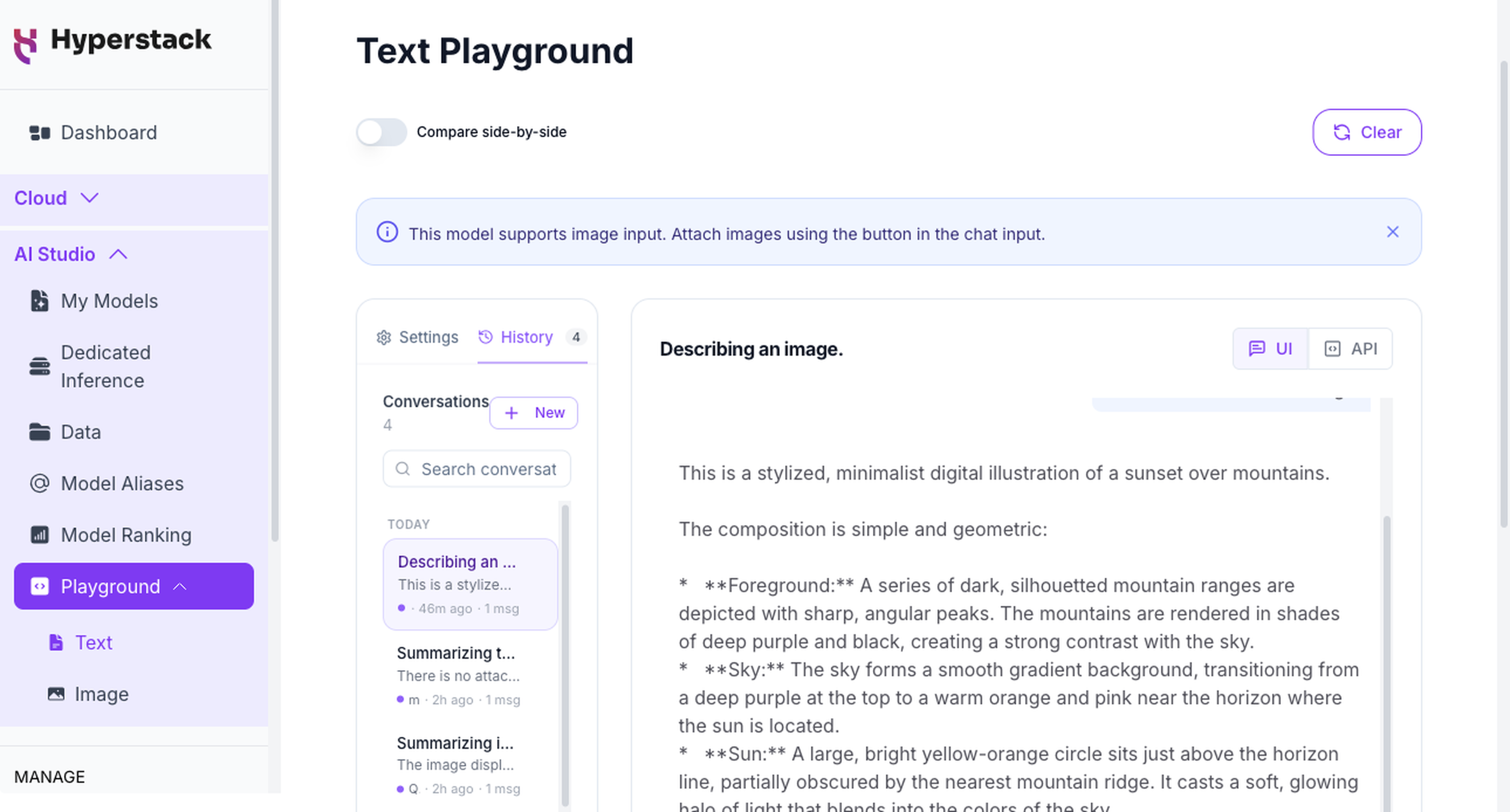
The History tab in the sidebar lists your past conversations, so you can resume previous work, compare results, and keep your conversations organized. Each conversation is saved automatically, and its title is generated for you from the first message.
From the History tab you can:
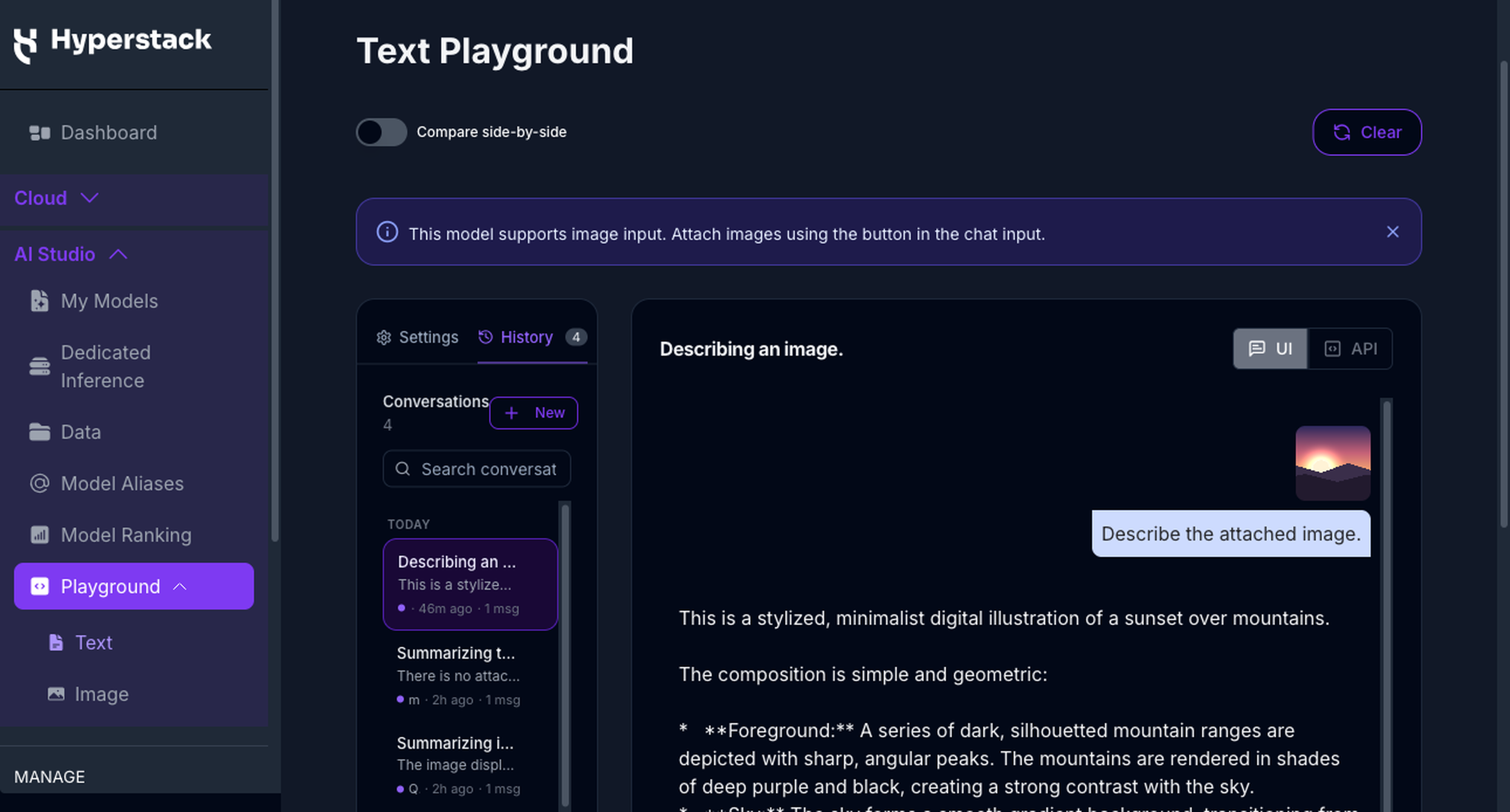
- Browse and search – conversations are grouped by time (Today, Yesterday, This Week, Older). Each entry shows its title, a preview of the latest message, the model used, the relative time, and the message count. Use the search box to filter by title.
- Open a conversation – select any conversation to load its messages, model, system prompt, and settings into the chat panel and continue where you left off. The active conversation is highlighted.
- Start a new conversation – select + New to clear the current chat and begin a fresh conversation.
- Rename a conversation – open the three-dot menu on a conversation, select Rename, edit the title inline, and press Enter to save.
- Delete a conversation – open the three-dot menu and select Delete. You are asked to confirm, after which the conversation is permanently removed.
Compare Side-by-Side
Click Compare Side-by-Side to evaluate how two models respond to the same input.
- Select the two models from the dropdowns.
- Enter your prompt.
- View and compare both outputs side-by-side in real time.
When you attach an image in compare mode, it is sent to image-capable models. Text-only models respond to the text of your message.
When using the Compare Side-by-Side feature, each model is queried separately. This means you will be billed for two inference requests, one for each selected model. This applies to all third-party hosted models.
For more information on how to view billing details by model, see the Accessing Billing Information in AI Studio documentation.
API Mode
The Text Playground provides a UI / API toggle that converts your current configuration into a ready-to-use API request. Click API in the top-right of the chat panel to switch from UI to API and view the equivalent request for the model, messages, and parameters you have set.
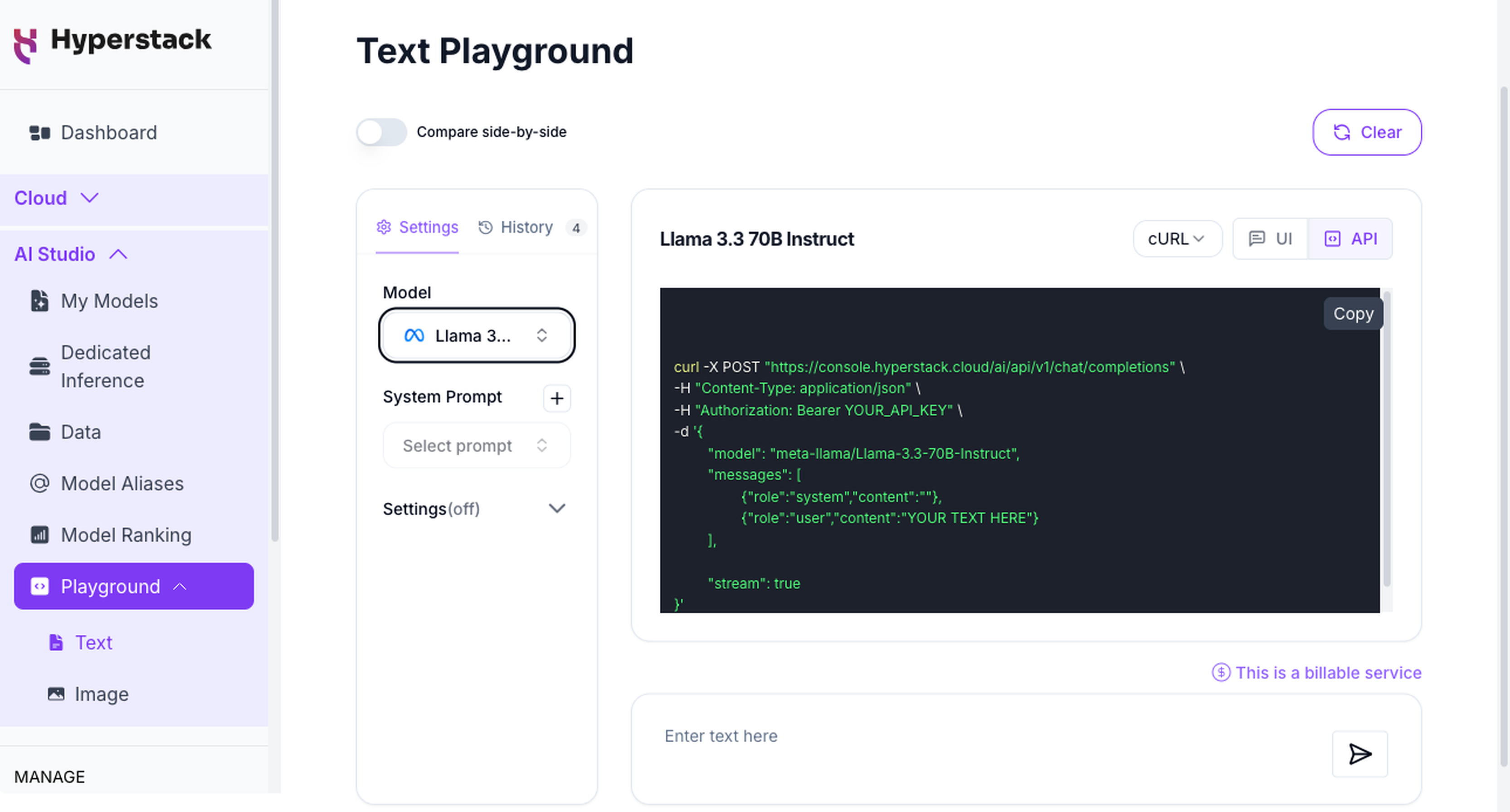
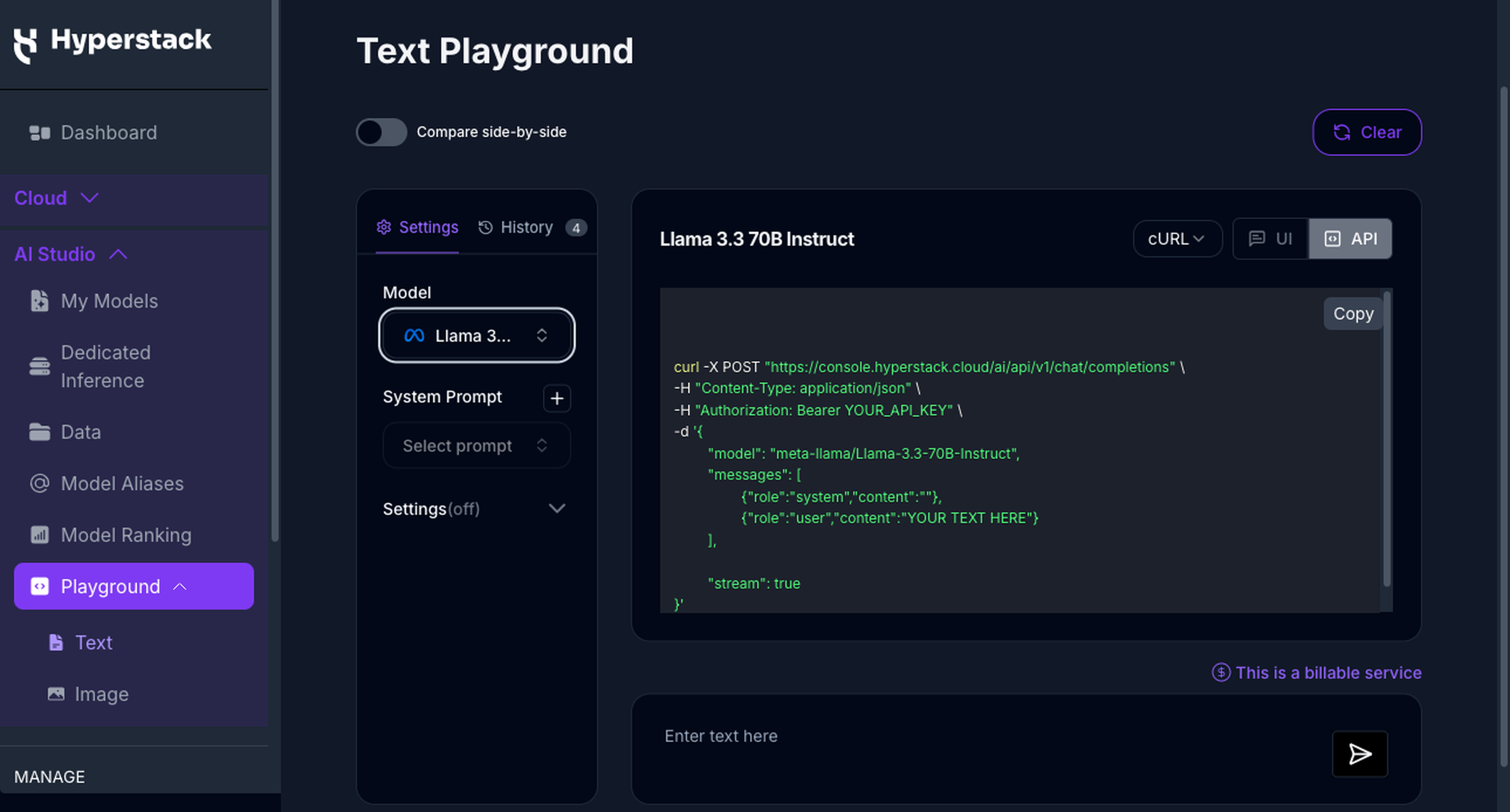
In Compare Side-by-Side, the toggle on the left panel switches both panels, showing the equivalent request for each model.
The request calls the Create chat completion endpoint. See its page in the AI Studio API reference for the full request and response schema, parameters, and accepted values.