Ask AI Assistant
Ask questions about Hyperstack and get answers from the documentation, with links to the pages they come from.
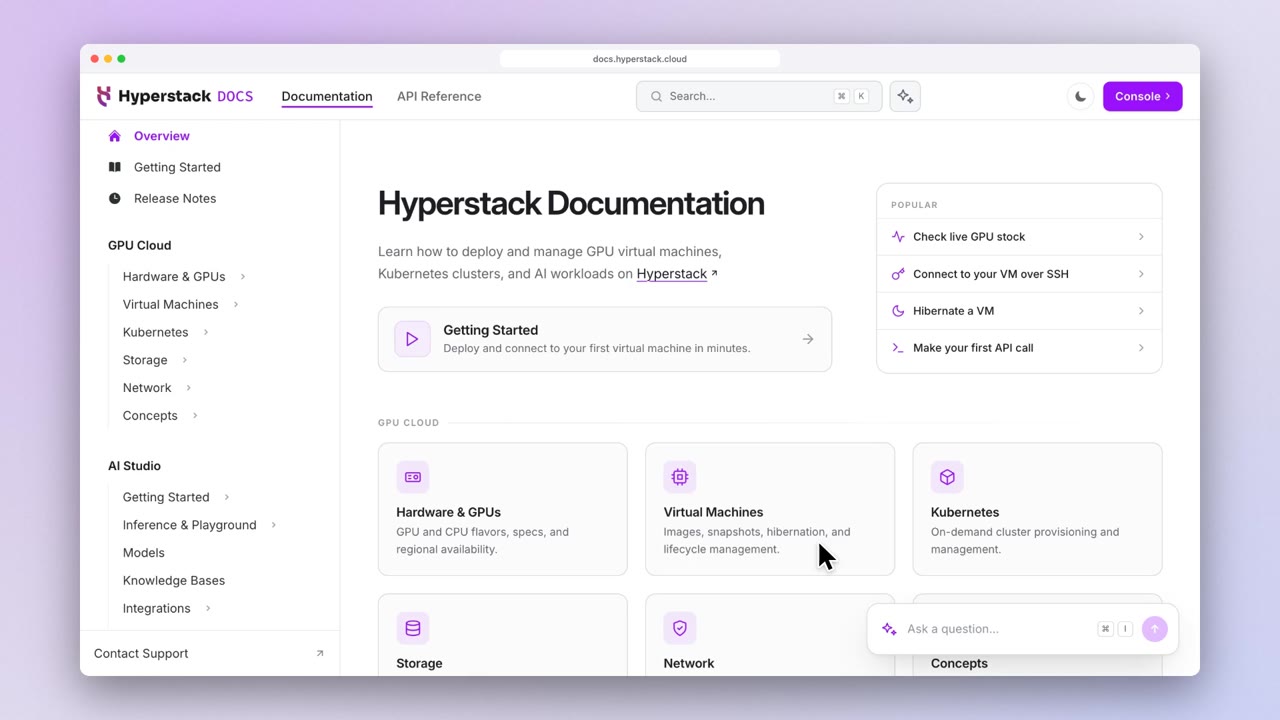
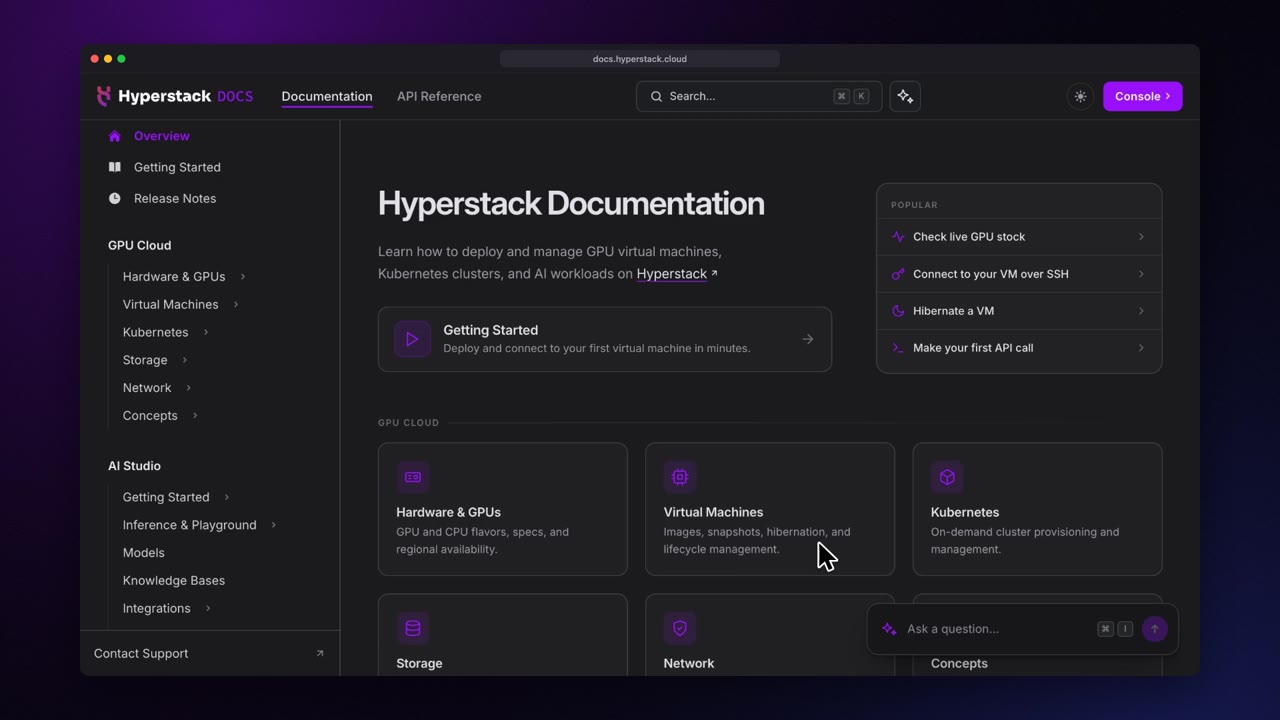
The documentation assistant answers questions about Hyperstack from this documentation and links each answer to the pages it came from. Use it to get answers without searching through pages, or to have an error message or code sample explained.
For each question, the assistant finds the most relevant pages in this documentation, and a large language model writes the answer from those pages, an approach called retrieval-augmented generation (RAG). It runs on Hyperstack AI Studio serverless inference, using a model from the AI Studio model catalog. You can use the same models yourself in the Text Playground or through the OpenAI-compatible Inference API.
Ask a question
The assistant is available on every documentation page, so you can ask a question without leaving what you are reading.
Open the assistant
Open the assistant from wherever you are:
- Ask box: Type a question in the Ask the assistant box at the bottom of the page and press Enter.
- Keyboard shortcut: Press
Cmd+Ion macOS orCtrl+Ion Windows and Linux. PressEscto close the assistant. - Search: Open search with
Cmd+KorCtrl+K, type your question, and select Ask Assistant. For questions, error messages, and pasted code, Ask Assistant appears at the top of the results already selected, so you can press Enter to send it.
The assistant opens in a panel beside the page, so you can keep reading while it answers.
Ask follow-up questions
The assistant remembers the conversation in the current browser tab, so you can ask follow-up questions without repeating the context. The conversation stays open as you move between pages or reload the page. To start a new conversation, select Clear at the top of the panel. To copy an answer, select Copy under it.
Get better answers
The assistant gives short, direct answers, so a specific question gets a more useful result:
- Describe what you want to do. "How do I attach a volume to a running VM?" gets a better answer than "volume attach".
- Paste the full error message. Include the status code and the error text exactly as you received them.
- Mention the API when you want API steps. By default, the assistant explains how to complete a task in the console.
Ask about a code sample
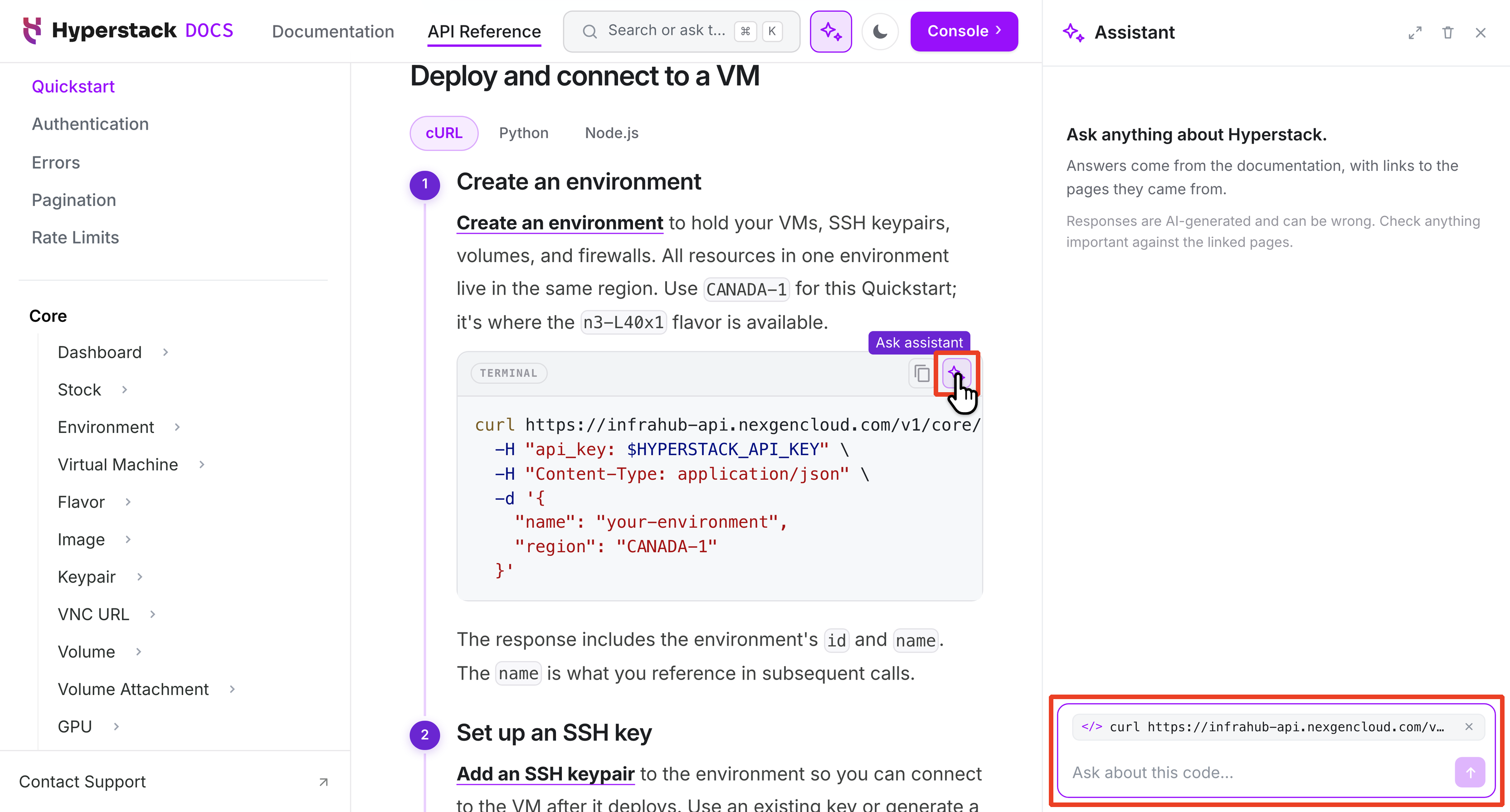
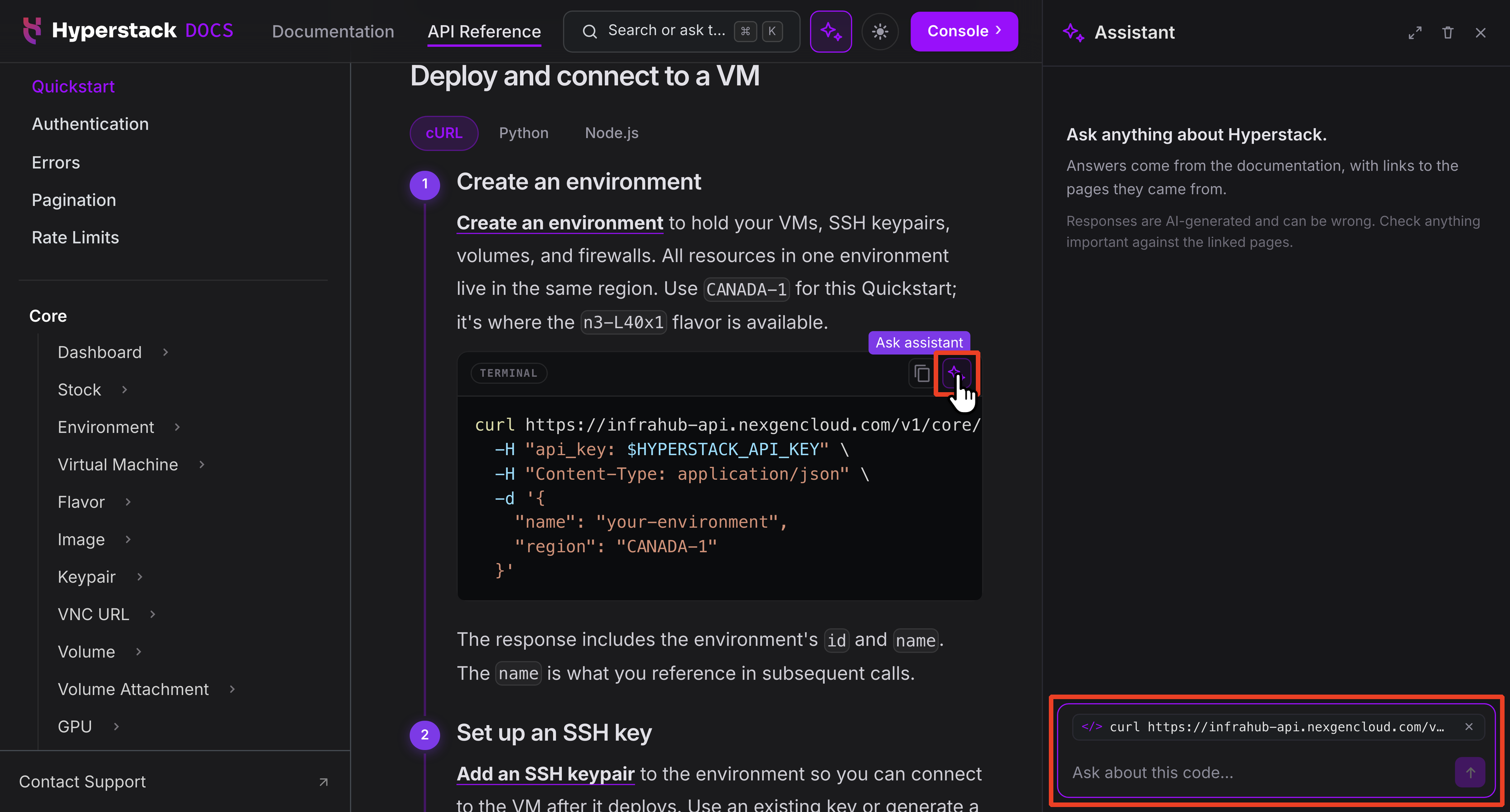
Ask about any code sample in these docs directly from its code block. Get an explanation of how the code works, ask about a specific part of it, or get help when it does not run as expected. Select the assistant icon in the top-right corner of the code block. The assistant opens with that code attached to your question, so you do not need to copy it in yourself.
How answers work
The assistant answers from the documentation and shows which pages each answer came from, so you can check it.
What answers are based on
The assistant answers only from the published Hyperstack documentation, including the guides, tutorials, and API reference. It does not browse the web, and it cannot see your account or your resources.
Under each answer, Sources lists up to three pages the answer came from. Select a source to open that page while the panel stays open. Answers are AI-generated and can be wrong, so check anything important against the linked pages before you act on it.
Questions the documentation cannot answer
Some questions depend on information that only your account or the live platform has, so the assistant points you to the right place instead:
- Your account: Your balance, invoices, and running resources are not in the documentation. For help with your account, contact support.
- Live GPU stock: Availability changes constantly. For current stock, see live GPU stock or the Deploy Virtual Machine page in the console.
- Support requests: The assistant cannot open a ticket or connect you with a person. To reach the support team, see Support.
Feedback
After every answer, you can give feedback on it. Select the thumbs-up or thumbs-down icon under the answer. After a thumbs-down, select what was wrong with the answer, then select Send.