Bootable Volumes
Shared Storage Volumes with an operating system image installed, used to create and deploy virtual machines.
Shared Storage Volumes (SSVs) can be created with operating system (OS) images installed on them by selecting an image during the volume creation process in Hyperstack. These volumes with images installed are known as Bootable Volumes. A bootable volume contains all the necessary files, configurations, and settings required to run the operating system for a virtual machine. After creating a volume with an OS installed, it can be used to create and deploy virtual machines. If a virtual machine is created from a bootable volume, it can access the data saved on the volume and use its operating system. It's important to note that a bootable volume can only be attached to a single virtual machine at a time due to the lack of support for parallel access to a single disk by most operating systems and file systems.
Creating a bootable volume in Hyperstack
To create a bootable volume in Hyperstack, follow these steps:
-
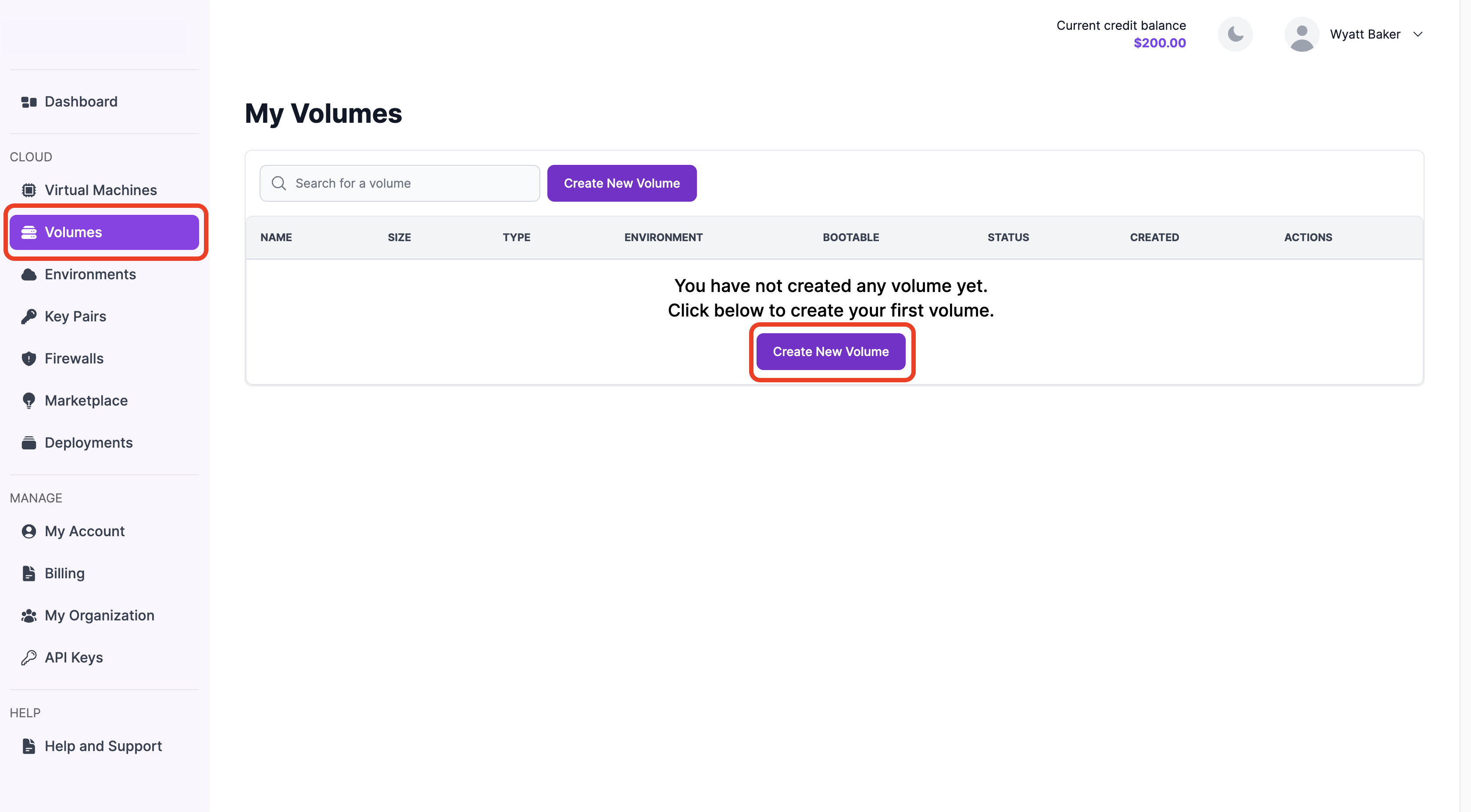
Log in to your Hyperstack account and navigate to the Volumes section in the left-hand menu. This will bring you to the "My Volumes" page where you can start the process of creating a new volume.
-
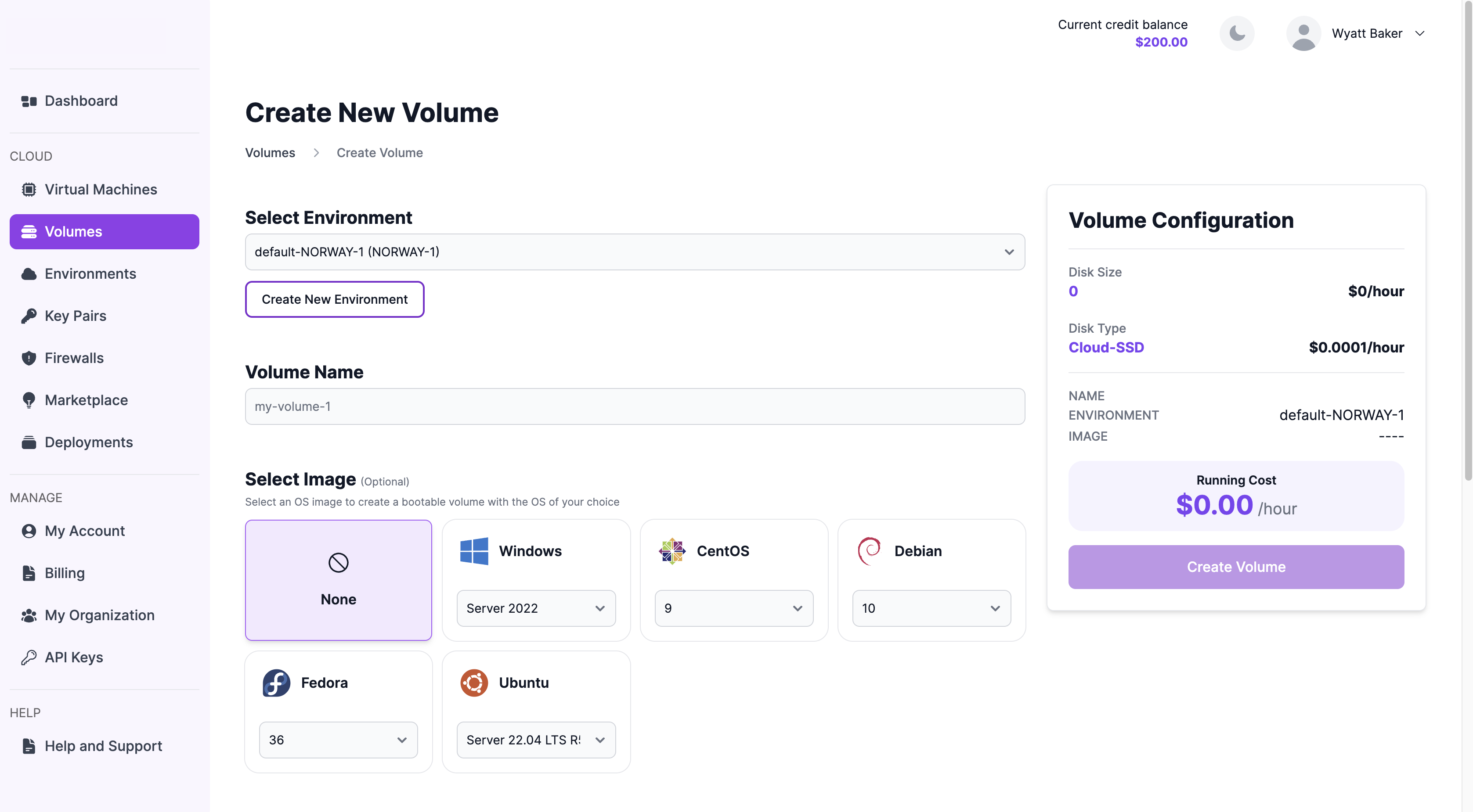
Configure the volume as follows:
-
Select Environment: Choose an existing environment or create a new one.
-
Volume Name: Enter a name for your volume.
-
Operating System Image (Optional): Select an OS image to create a bootable volume.
-
-
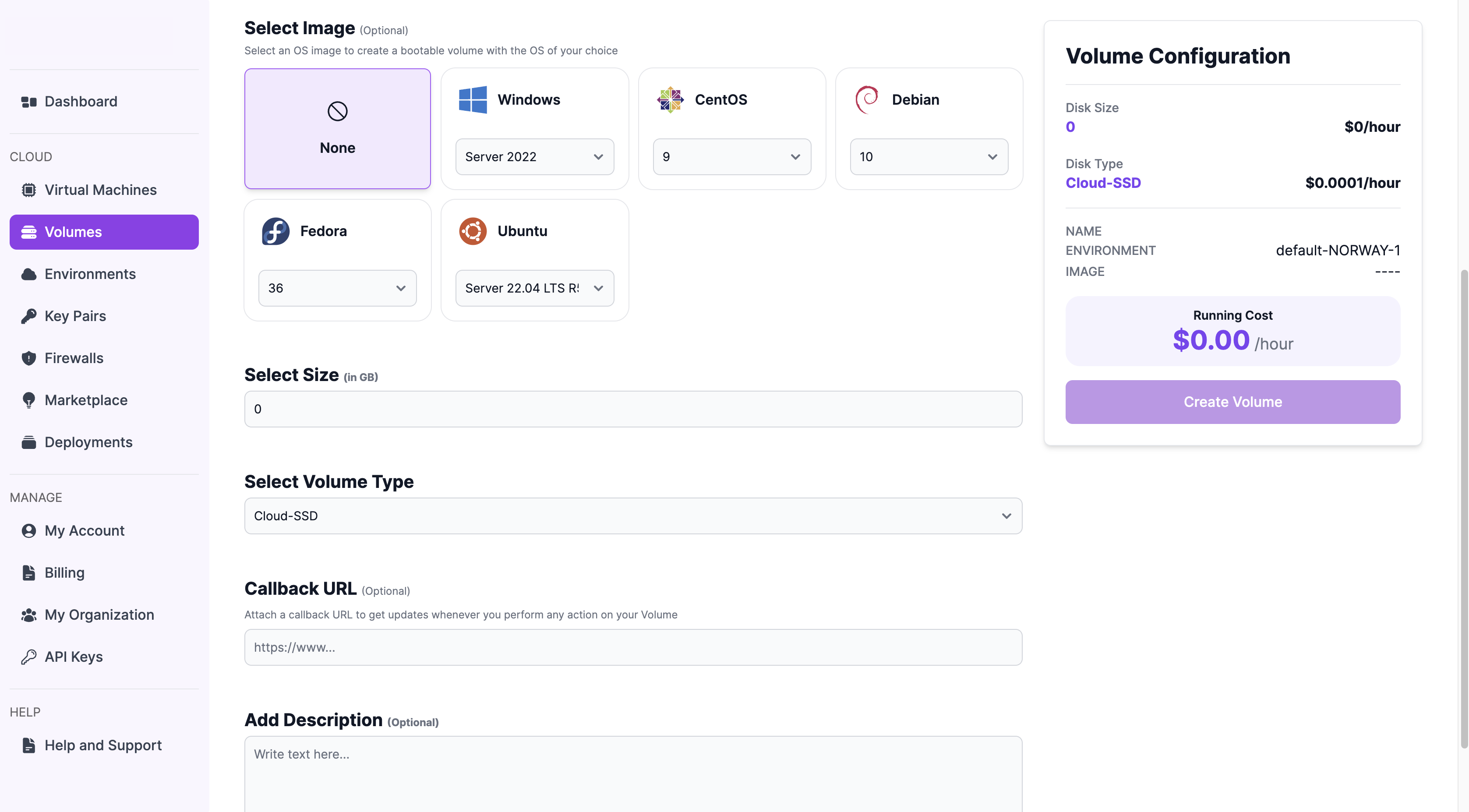
Choose volume capacity and optional features.
a. Disk Size: Specify the size based on your requirements, e.g., '100 GB'.
b. Callback URL (Optional): Provide a URL to receive updates on your volume.
c. Add Description (Optional): Include a brief description of your volume.
-
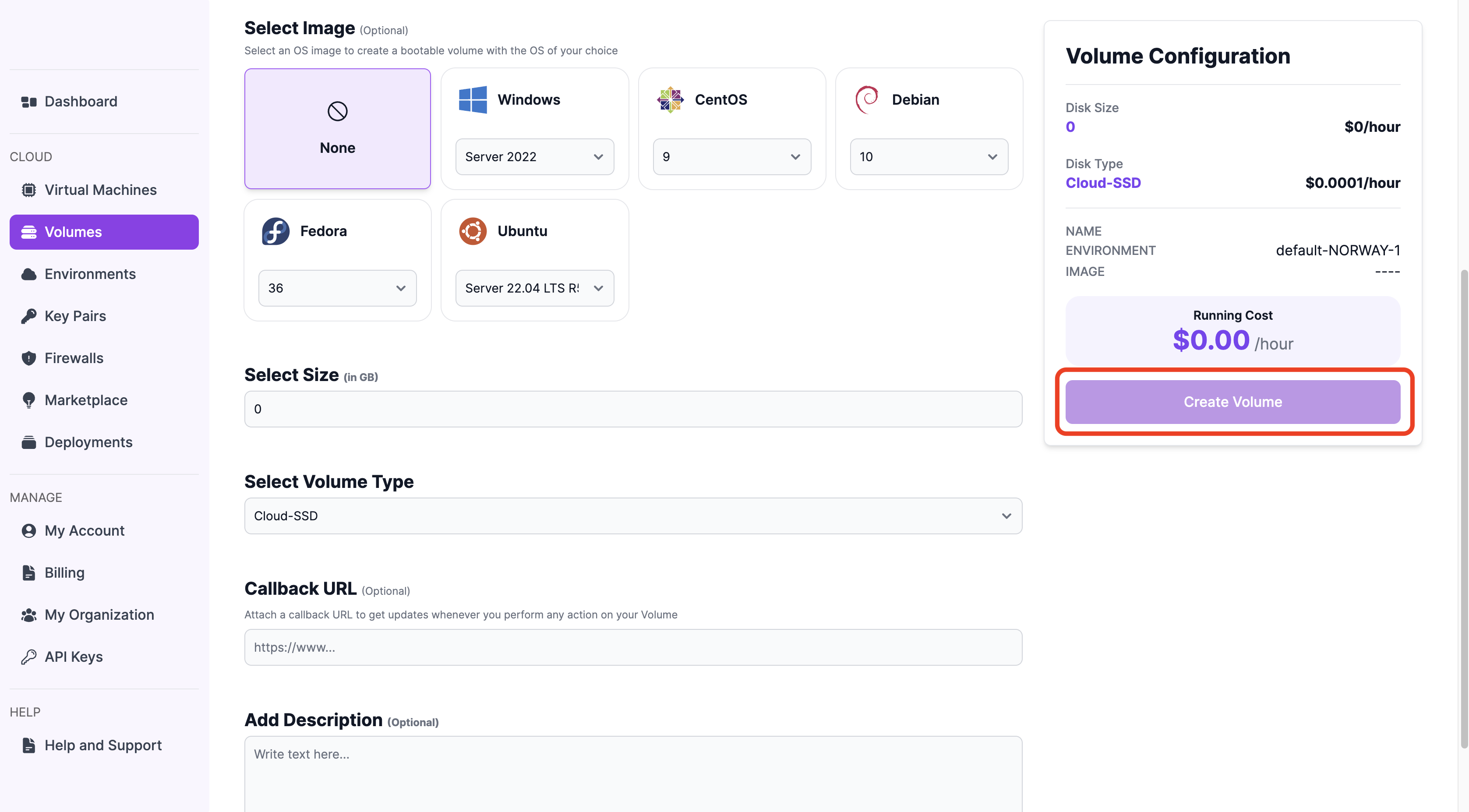
Review your selections and the hourly running cost. Finally, click the 'Create Volume' button to deploy the volume.
Your new volume is now configured and ready for use. You can attach it to virtual machines or use it for your storage needs.