Running Open WebUI
Run Open WebUI as a self-hosted, browser-based chat interface for models served by Ollama.
Open WebUI is an open-source, self-hosted chat interface for large language models. Pointed at an Ollama server, it gives you a browser-based chat experience similar to commercial assistants, but backed by a model running on your own GPU with no per-token costs and no data leaving your server.
By the end of this tutorial, you will have Open WebUI running alongside Ollama on a GPU virtual machine, reachable in your browser, and answering prompts from a model on the GPU.
This tutorial runs Ollama as the model backend and Open WebUI as the front-end, both as containers on one virtual machine. If you only need an API endpoint, the Running Ollama tutorial covers the backend on its own. For a managed, zero-infrastructure option, AI Studio serves open-source models through a serverless OpenAI-compatible API.
Step 1: Deploy a GPU virtual machine
Open WebUI itself is lightweight, but the model it serves runs in GPU memory through Ollama, so the virtual machine needs enough VRAM for your model and its context window. Choose a GPU with headroom; you can confirm the loaded footprint with ollama ps later.
-
In Hyperstack, navigate to the Virtual Machines page and click Deploy New Virtual Machine.
-
Select a GPU flavor with enough VRAM for your model. See flavors for the VRAM of each GPU.
-
For the OS image, choose an Ubuntu image that includes CUDA drivers and Docker, such as Ubuntu Server 24.04 LTS R570 CUDA 12.8 with Docker. This image ships the NVIDIA driver, the CUDA toolkit, Docker, and the NVIDIA Container Toolkit, so the containers can reach the GPU with no further setup.
-
Select an SSH key, enable the SSH Access toggle so port 22 is reachable, and enable the Assign Public IP toggle so the virtual machine gets a public IP address. For full deployment options, see the getting started guide.
-
Click Deploy. The virtual machine reaches the
ACTIVEstate in a few minutes.
Once the virtual machine is ACTIVE, connect to it over SSH to start the containers.
Step 2: Connect to the virtual machine
Connect over SSH to run the containers and, later, to forward the Open WebUI port to your local machine.
-
Find the virtual machine's public IP in the PUBLIC IP column on the Virtual Machines page.
-
Run the following command, replacing
<path-to-ssh-key>with the path to your private SSH key and<vm-ip-address>with the public IP. If you downloaded the key from the console, restrict its permissions first or SSH will refuse it:terminalSet key permissions and connectchmod 400 <path-to-ssh-key>
ssh -i <path-to-ssh-key> ubuntu@<vm-ip-address>
With a shell open on the virtual machine, start the model backend.
Step 3: Start Ollama and pull a model
Open WebUI does not run models itself; it sends requests to an Ollama server. Start Ollama first so a model is ready when the interface connects.
-
Start the Ollama container:
terminalStart the Ollama containersudo docker run -d \
--gpus=all \
-p 11434:11434 \
-v /home/ubuntu/ollama:/root/.ollama \
--name ollama \
--restart always \
ollama/ollama:latestThe flags pass all GPUs through to the container (
--gpus=all), publish the Ollama API on port 11434 (-p 11434:11434), and store model weights in/home/ubuntu/ollamaso they persist across container restarts (-v ...). -
Pull a model. This example uses
llama3.2, a 2 GB model that fits on any GPU:terminalPull a modelsudo docker exec ollama ollama pull llama3.2The model is ready to serve when the command returns. If you have already followed the Running Ollama tutorial on this virtual machine, this is the same backend; skip to the next step.
With a model loaded into Ollama, start the Open WebUI container.
Step 4: Start Open WebUI
Open WebUI runs as a second container on the same virtual machine. Point it at the Ollama server from the previous step so the model appears in the interface.
-
Start the Open WebUI container:
terminalStart the Open WebUI containersudo docker run -d \
-p 3000:8080 \
--add-host=host.docker.internal:host-gateway \
-e OLLAMA_BASE_URL=http://host.docker.internal:11434 \
-e WEBUI_SECRET_KEY=$(openssl rand -hex 32) \
-v open-webui:/app/backend/data \
--name open-webui \
--restart always \
ghcr.io/open-webui/open-webui:mainThe interface listens on port 8080 inside the container, published here on port 3000 (
-p 3000:8080). The--add-hostflag andOLLAMA_BASE_URLlet the container reach the Ollama server running on the host.WEBUI_SECRET_KEYsets a persistent key so login sessions survive container restarts, and the named volume (-v open-webui:...) keeps your accounts and chat history. -
Confirm the container is running and healthy:
terminalCheck the container statussudo docker psThe
open-webuicontainer reports ahealthystatus within about half a minute of starting.
With both containers running, open the chat interface in your browser.
Step 5: Open the chat interface
Open WebUI listens on port 3000, which is not open in the virtual machine's firewall. Rather than exposing it publicly, reach it securely from your local machine with an SSH port-forward, the same way you would a private dashboard.
-
Open a new terminal on your local machine (not inside the SSH session). Run the following command to forward local port 3000 to Open WebUI. Keep this terminal open while you use the interface:
terminalForward the Open WebUI port to your local machinessh -i <path-to-ssh-key> -L 3000:localhost:3000 ubuntu@<vm-ip-address> -
In your browser, open http://localhost:3000. On the welcome screen, click Get started to open the account form.
-
The first account you create becomes the administrator. Enter a name, email, and password, then click Create Admin Account. This account and its credentials are stored only on your virtual machine.
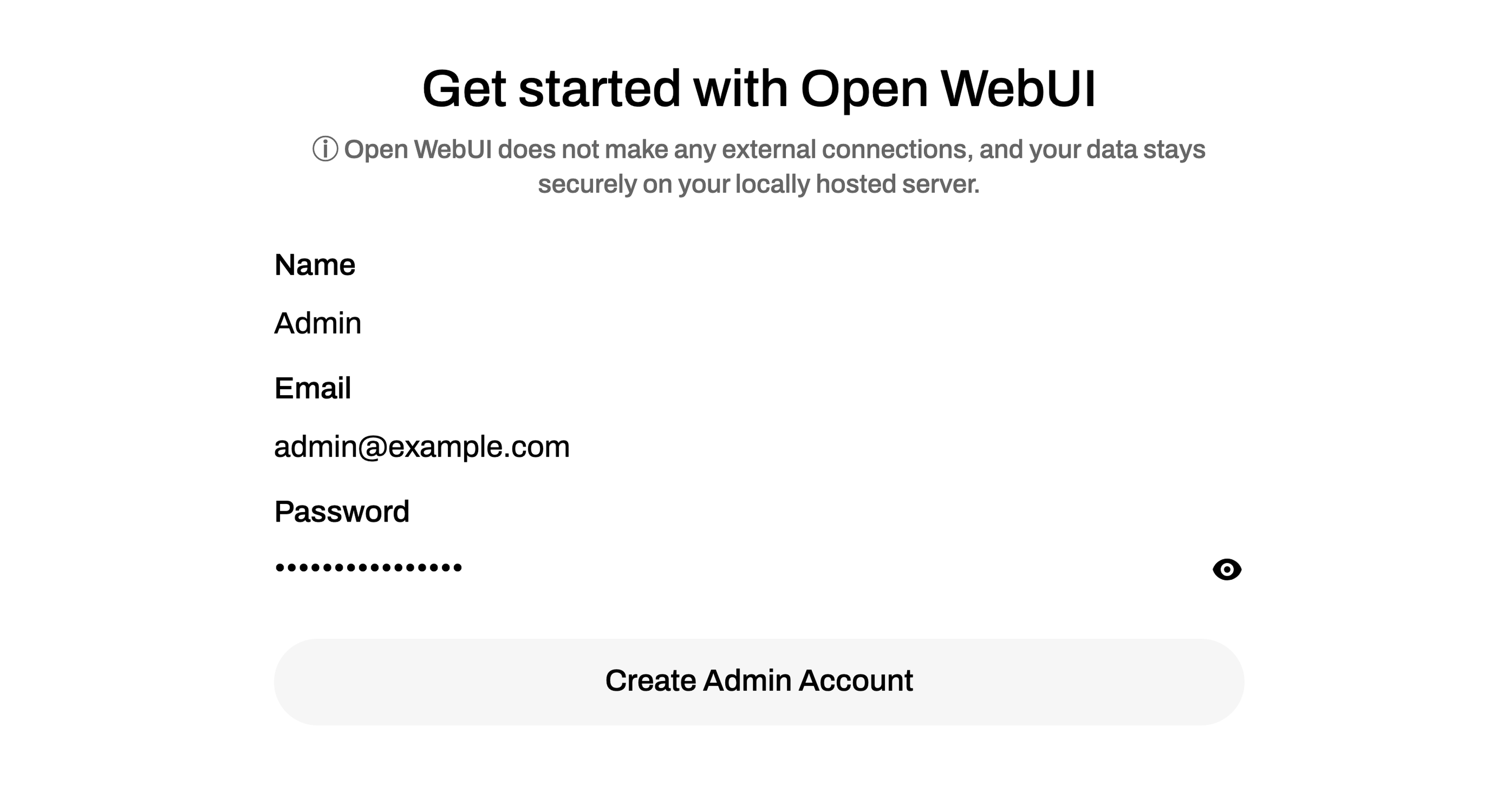
-
After a brief release-notes dialog, the chat opens with your Ollama model already selected in the top-left model menu. Type a message and press Enter to send it. The model responds in the browser, served by the GPU on your virtual machine.
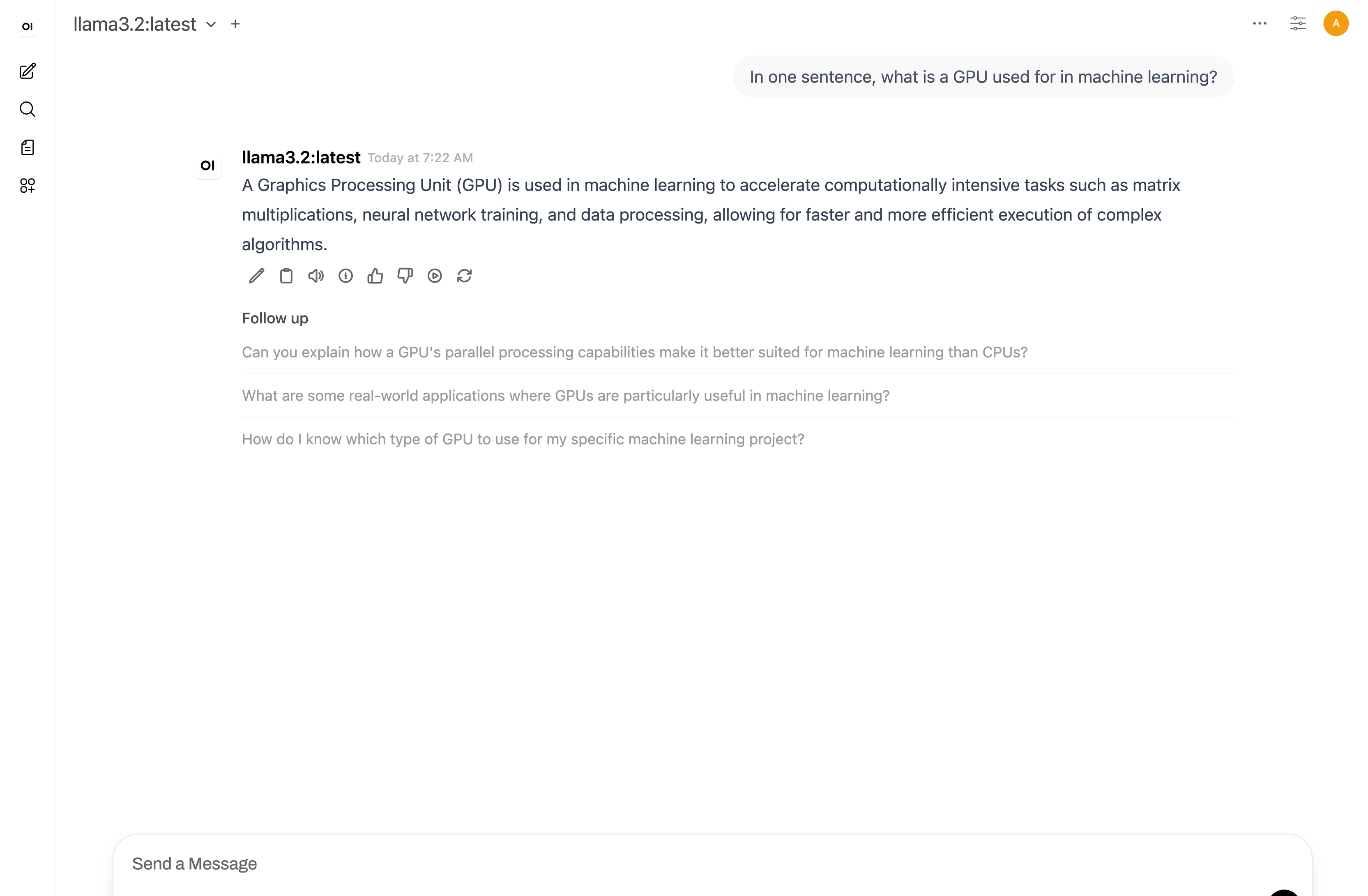
-
To confirm the request ran on the GPU, return to your SSH session on the virtual machine and run:
terminalCheck GPU usagesudo docker exec ollama ollama psThe output shows the model loaded and the share of it running on the GPU:
Example outputNAME ID SIZE PROCESSOR CONTEXT UNTIL
llama3.2:latest a80c4f17acd5 17 GB 100% GPU 131072 4 minutes from now
Reaching Open WebUI through the SSH port-forward keeps it off the public internet. If you instead open port 3000 in the firewall to share the interface, anyone who reaches it can register an account, so put it behind a reverse proxy with TLS and your own authentication first. Never expose it with WEBUI_AUTH=False, which disables login entirely.
Virtual machines bill for as long as they are running. When you're finished, hibernate the virtual machine to reduce charges, or delete it if you no longer need it. See VM Status and State Management for lifecycle options.
Troubleshooting
Find solutions to common issues you might hit while following this tutorial. Select an issue to expand its solution:
The browser cannot reach Open WebUI
Port 3000 is not open in the virtual machine's firewall by design, so the interface is not publicly accessible. Reach it through the SSH port-forward shown in Step 5 and confirm that terminal is still open. Check that the container is healthy with sudo docker ps.
No models appear in the model menu
Open WebUI lists the models it finds on the Ollama server. If the menu is empty, the interface cannot reach Ollama. Confirm the Ollama container is running (sudo docker ps), and that you started Open WebUI with --add-host=host.docker.internal:host-gateway and -e OLLAMA_BASE_URL=http://host.docker.internal:11434. Pull a model in Ollama (see Step 3) if you have not already.
The model runs on CPU instead of GPU
If ollama ps shows 100% CPU instead of 100% GPU, the Ollama container was started without the --gpus=all flag. Remove it and run the docker run command from Step 3 again with the flag included:
sudo docker rm -f ollama