Generate images
Create images from a text prompt, or edit an existing image, using the vision models in the AI Studio Image Playground.
See the full Image Playground guide for more details.
Before you begin
You'll need:
- A Hyperstack account. Sign up on the registration page using your email or an SSO provider (Google, Microsoft, or GitHub).
- Billing set up. Add credit to your account.
- Access to AI Studio. Open AI Studio in the Hyperstack console.
Generate an image in the Image Playground
-
Open the Image Playground
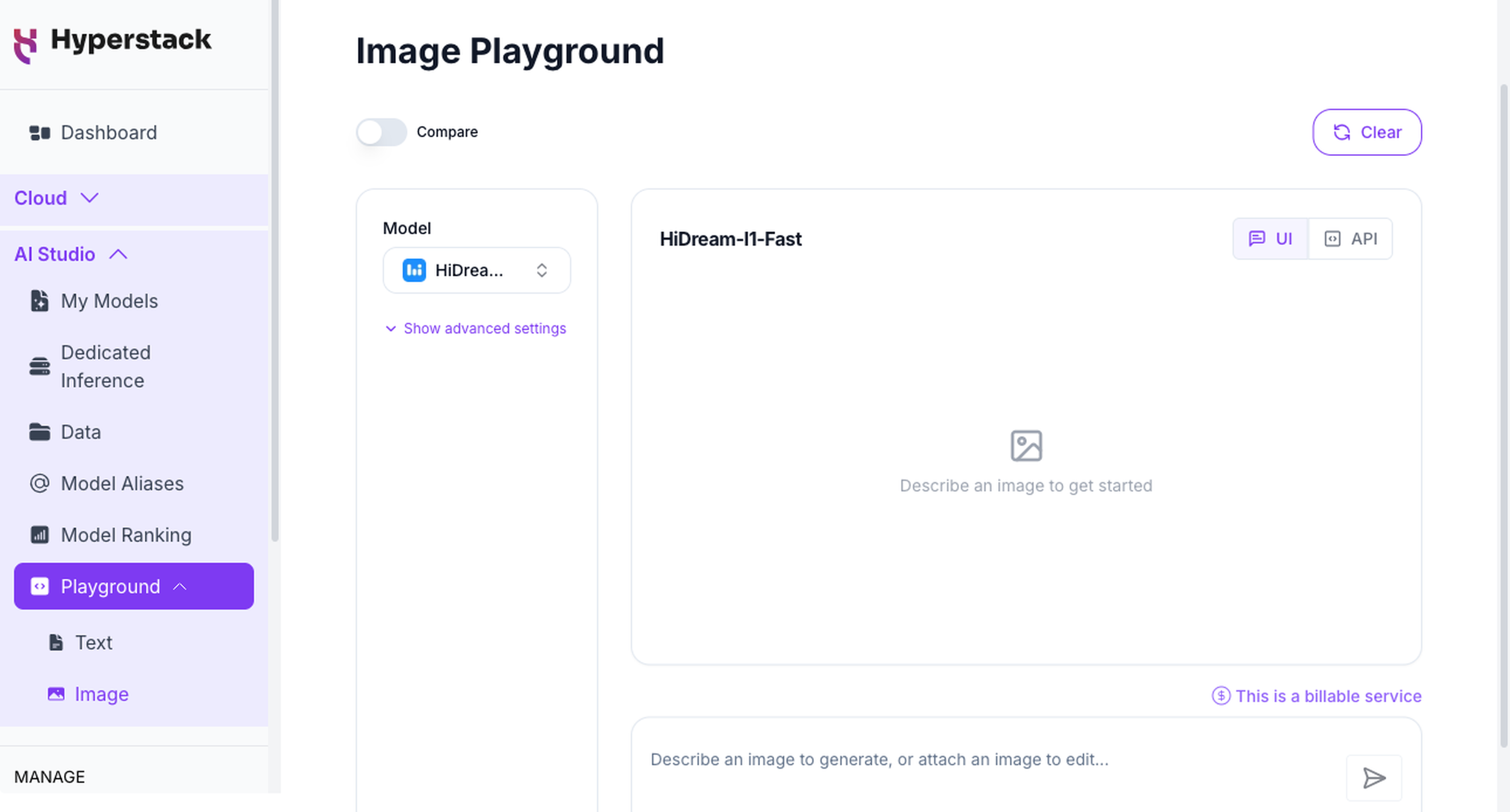
Navigate to the Image Playground in AI Studio.
-
Select a model
From the model dropdown, choose a vision model. Pick a text-to-image model to generate from a prompt, or an image-to-image model to edit an existing image.
-
(Optional) Adjust generation settings
Click Show advanced settings to set options such as image size, negative prompt, number of images, and inference steps. The available options depend on the selected model. See Adjust image generation parameters for details.
-
Enter a prompt or upload an image
Describe the image you want in the input box. For an image-to-image model, upload a source image with the attachment icon and add an optional prompt. Click Send.
-
View and download your result
Generation runs asynchronously, so your result appears in the preview panel once processing completes. Click an image to expand it, or hover over it to download.
Next steps
Image Playground
Full details on models, parameters, and side-by-side comparison.
Image generation API
Generate and edit images programmatically with the image endpoints.
Image billing
See how image generation is priced per 16x16 pixel patch.
Overview
Browse the full AI Studio documentation.