Chat with a model
Send your first prompt to a hosted model in the AI Studio Text Playground. No setup or training required. Pick a model and start chatting.
See the full Text Playground guide for more details.
Before you begin
You'll need:
- A Hyperstack account. Sign up on the registration page using your email or an SSO provider (Google, Microsoft, or GitHub).
- Billing set up. Add credit to your account.
- Access to AI Studio. Open AI Studio in the Hyperstack console.
Run inference in the Text Playground
-
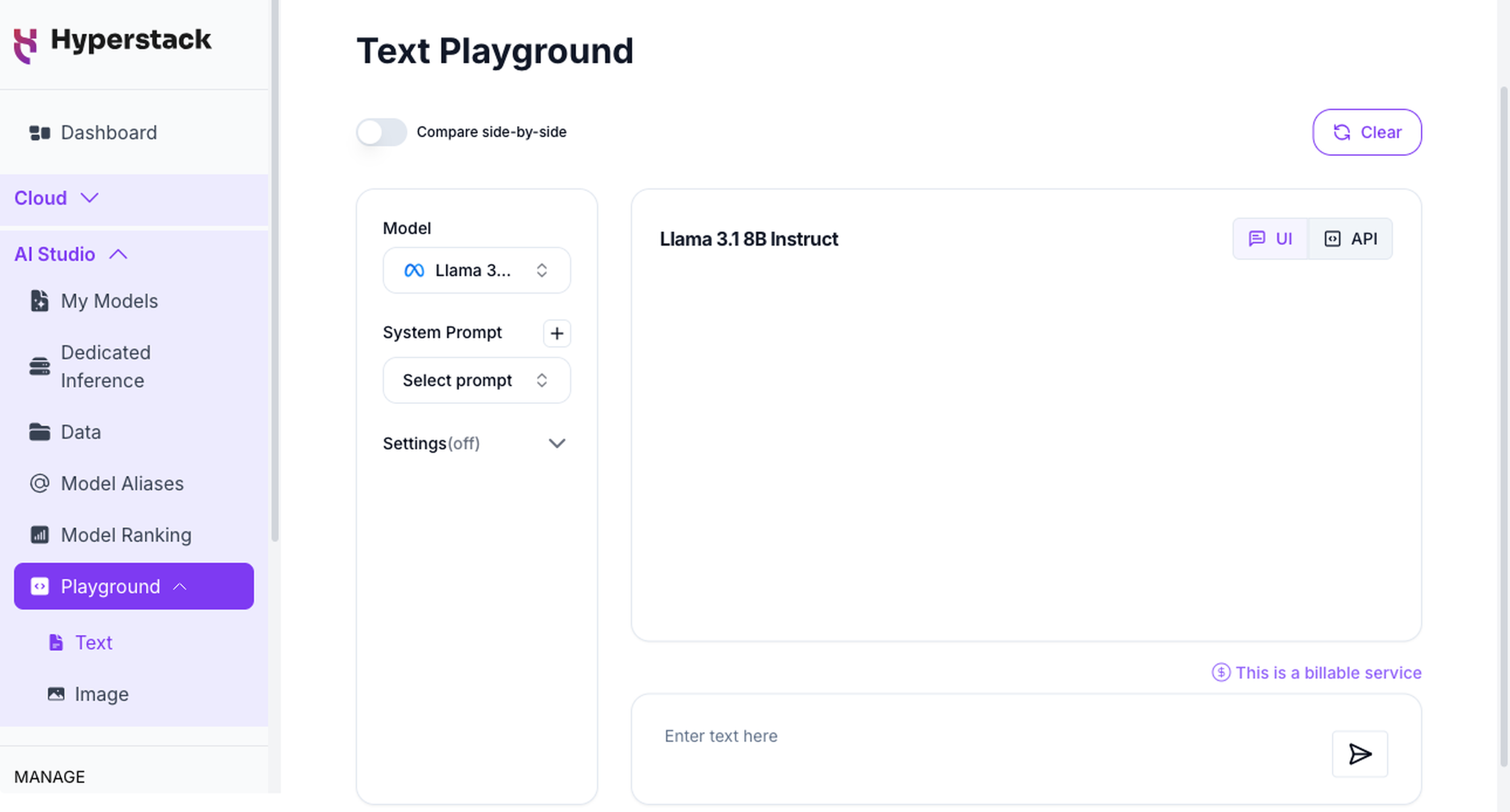
Open the Text Playground
Navigate to the Text Playground in AI Studio.
-
Select a model
From the model dropdown, choose any model.
Compare two modelsTurn on the Compare side-by-side toggle to pick a second model and send the same prompt to both at once. Each model is billed separately. See the Compare Side-by-Side guide.
-
(Optional) Add a system prompt
To steer the model's behavior, click the + next to System Prompt, enter a prompt name and the instructions (such as
You are a concise technical assistant.), then click Save. Select your saved prompt from the Select prompt dropdown to apply it. -
(Optional) Adjust parameters
Expand the Settings section to tune the response with the available sliders, such as temperature, max tokens, and top-p. The defaults work well to start. See the parameter reference for what each one does.
-
Send a prompt
Type your message into the input box and press Enter. The model's response streams back in the chat. Your session, model, and settings are saved after you send the first message.
Next steps
Use the API
Run the same inference programmatically with the OpenAI-compatible API.
Browse models
See every model available for inference, by modality, with pricing.
Add a knowledge base
Ground answers in your own documents and cite the passages used.
Overview
Browse the full AI Studio documentation.