LobeChat
Deploy LobeChat with AI Studio as the backend for a self-hosted chatbot UI.
This quickstart guide shows you how to connect LobeChat to Hyperstack AI Studio. You’ll retrieve API credentials, deploy LobeChat with Hyperstack as the backend, and verify your model responses. This integration enables a fully self-hosted chatbot UI powered by AI Studio models.
For the complete guide that includes background, architecture, and advanced workflows, see How to Connect AI Studio to LobeChat for Advanced AI Chatbots.
Why Use LobeChat with Hyperstack AI Studio
LobeChat is an extensible, open-source frontend for building conversational AI applications. It supports OpenAI-compatible APIs, multi-provider backends, branching conversations, file uploads, knowledge base integration, agent-style workflows, and an advanced plugin system. This makes it ideal for building internal tools, customer-facing chatbots, or complex AI assistants.
LobeChat is optimized for self-hosting. It supports Docker-based deployment and is fully configurable through environment variables or its web-based admin UI. Teams can deploy LobeChat behind access codes, configure multiple model providers, and extend its behavior with agents and plugins.
Hyperstack AI Studio complements LobeChat by offering a powerful backend for model development and hosting. With AI Studio, you can:
- Choose from open models such as Llama 4, Qwen, DeepSeek, and gpt-oss
- Serve models behind OpenAI-compatible APIs
Once integrated:
- LobeChat manages the chat interface, users, and interaction workflows
- Hyperstack AI Studio manages model inference and performance
This pairing gives you the flexibility to scale, experiment, and decouple your frontend UX from model infrastructure. To learn more about this architecture, see the full tutorial here.
How to Connect LobeChat to Hyperstack AI Studio
-
Get API Credentials from Hyperstack AI Studio
Generate the credentials required to authenticate with Hyperstack AI Studio.
- Log in to the Hyperstack Console
- Go to the AI Studio Playground and choose your model (e.g.,
meta-llama/Llama-4-Scout-17B-16E-Instruct) - Select the API tab to find your Base URL and Model ID
- Visit the API Keys page to generate a key
- Copy and securely store your new API key
-
Run LobeChat via Docker with Hyperstack Config
Deploy LobeChat using Docker. You can configure it in one of two ways:
Option A: Set Environment Variables at Launch
terminaldocker run -d -p 3210:3210 \
-e OPENAI_API_KEY=sk-xxxx \
-e OPENAI_PROXY_URL=https://api-proxy.com/v1 \
-e ACCESS_CODE=lobe66 \
-e OPENAI_MODEL_LIST=-meta-llama/Llama-4-Scout-17B-16E-Instruct \
--name lobe-chat \
lobehub/lobe-chatOPENAI_API_KEY: Your Hyperstack API keyOPENAI_PROXY_URL: (Optional) a proxy URL to route requestsACCESS_CODE: Password to protect the LobeChat UIOPENAI_MODEL_LIST: Model name to expose in the UI
Option B: Configure Hyperstack Later via UI
terminaldocker run -d -p 3210:3210 \
-e ACCESS_CODE=lobe66 \
--name lobe-chat \
lobehub/lobe-chatThis starts LobeChat with an access code only. You’ll enter the Hyperstack configuration in the UI later.
For more on Docker setup, see the full guide here.
-
Open LobeChat UI and Navigate to Settings
Open http://localhost:3210 in your browser. Enter your access code (e.g.,
lobe66) if prompted.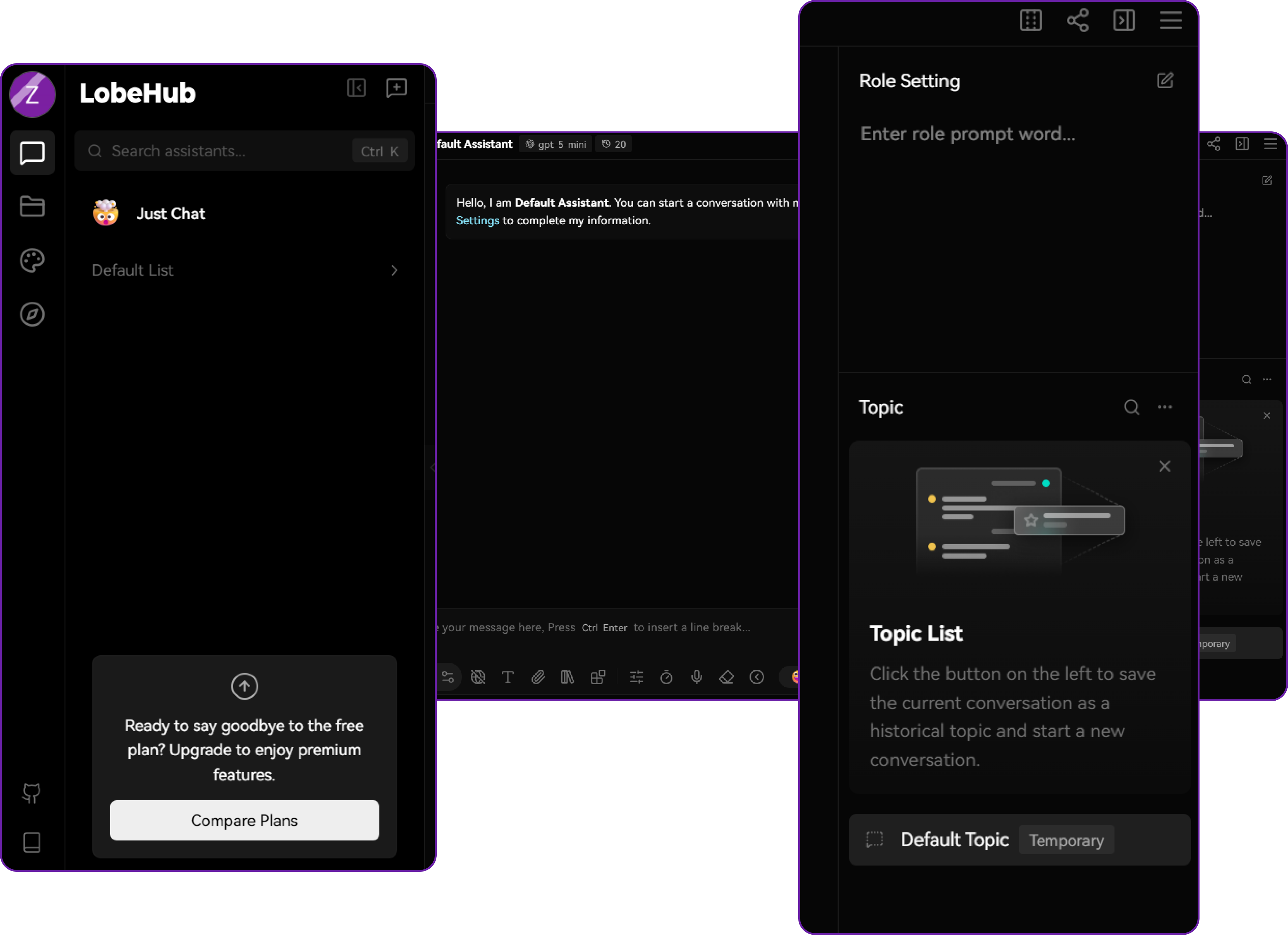
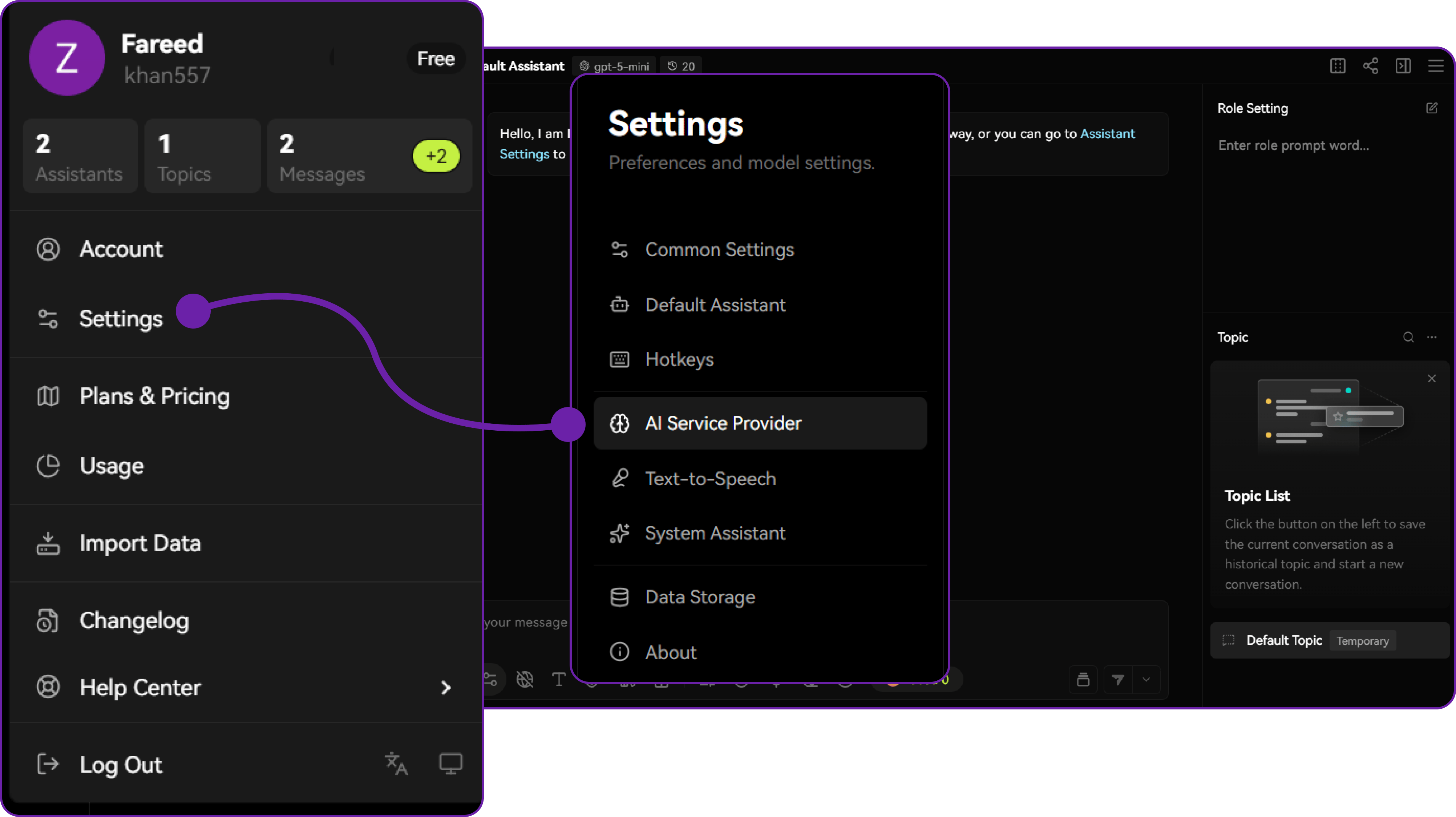
Click the profile icon (top-right), then select Settings. Scroll to the AI Service Provider section.
-
Configure LobeChat to Use Hyperstack
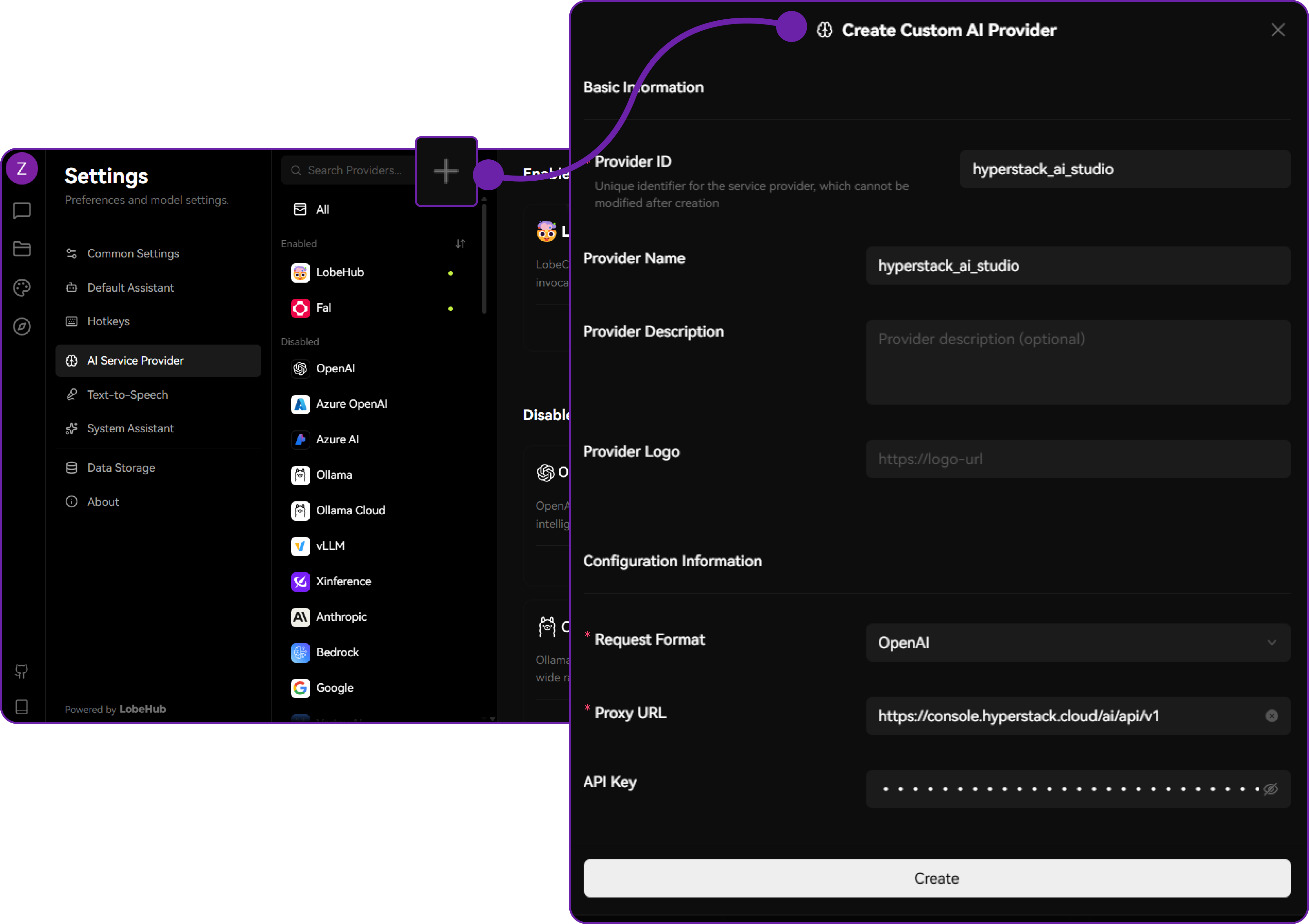
In the AI Service Provider section, click the + button to add a new provider. Use the following values:
- API Key: Your Hyperstack API key
- Base URL:
https://console.hyperstack.cloud/ai/api/v1 - Model Name:
meta-llama/Llama-4-Scout-17B-16E-Instruct
-
Test Connection and Verify Responses
Click Test Connection. You should see a success message if the credentials are valid.
Return to the main chat interface. The model should be listed at the top or in the model selector dropdown. Send a prompt like:
What’s the capital of Japan?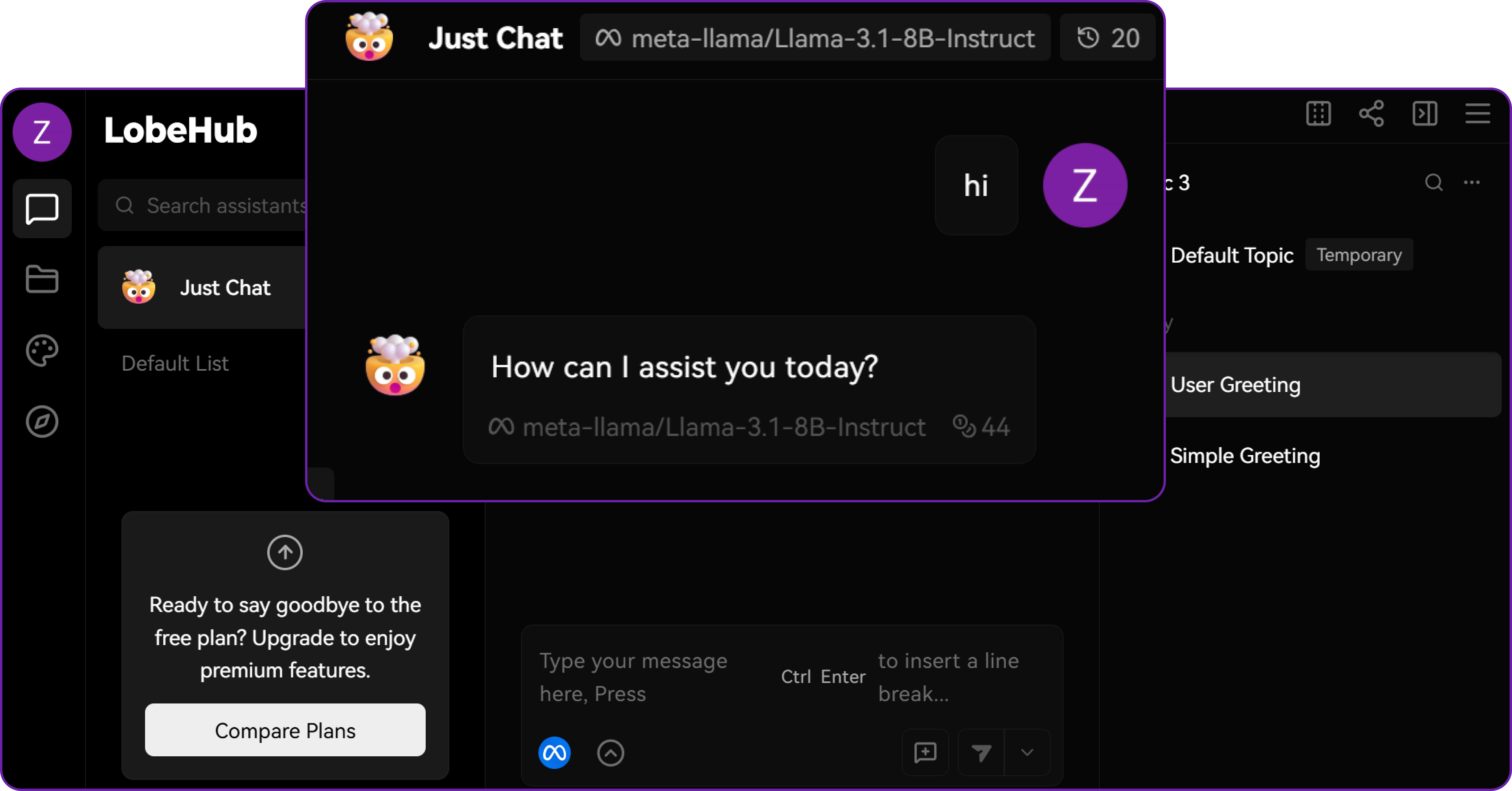
You should receive a valid response from your AI Studio model.