Console Logs
View a virtual machine's console logs to see storage, networking, cloud-init, and service details.
This article explains how to access console logs in the Hyperstack UI and what information you can expect to find in them. It provides a step-by-step guide for viewing logs and describes the types of details available, such as storage events, networking configuration, cloud-init stages, SSH keys, and service activity.
You can also retrieve console logs programmatically through the Hyperstack API. See the VM Console Logs API reference for details.
What Are Console Logs
The console logs provide a detailed record of a virtual machine’s boot process, capturing each stage from hardware initialization to system service startup. They include events such as disk and filesystem checks, network configuration, cloud-init operations, SSH key generation, and the status of background services and daemons. This information forms a complete timeline of how the VM transitions from boot to readiness.
Reviewing console logs helps you confirm when a VM has booted successfully, identify failed or delayed services, verify network setup and SSH access, and troubleshoot issues that prevent the VM from becoming operational. Console logs act as both a diagnostic tool and a record of your VM’s health and initialization.
How to Access Console Logs
To view the console output of a VM, follow these steps:
-
Navigate to Virtual Machines
Log in to your Hyperstack account. In the left-hand menu, click Virtual Machines to open the My Virtual Machines page. -
Open VM Details
Locate the VM you want to inspect and click its name to open the VM Details page.VM status requirementThe selected VM must be in the
ACTIVEstate to retrieve logs. -
Click Console Logs
In the top-right corner of the VM Details page, click the Console Logs button.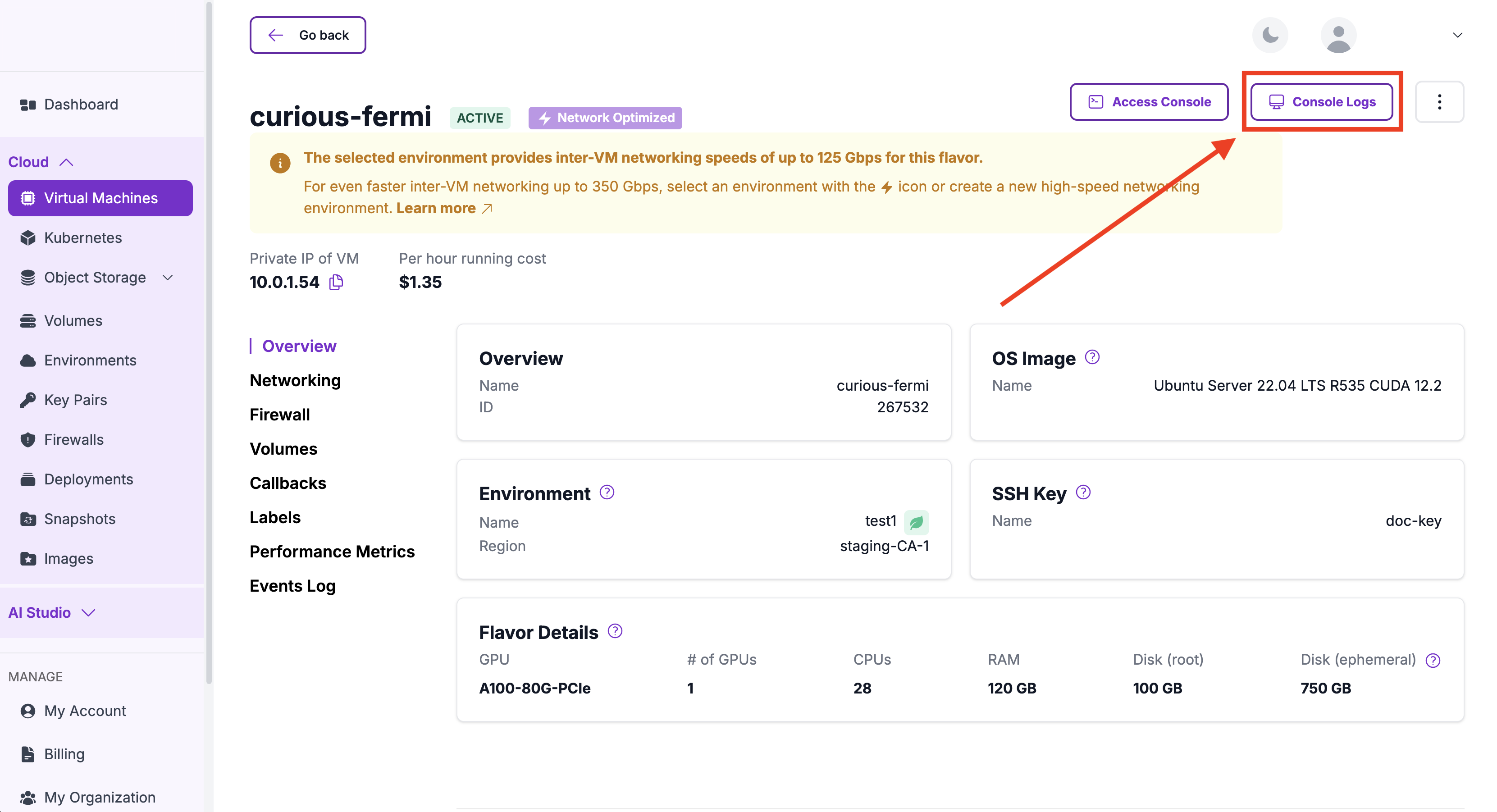
-
View Console Output
A new window will open showing real-time system logs and VM boot output.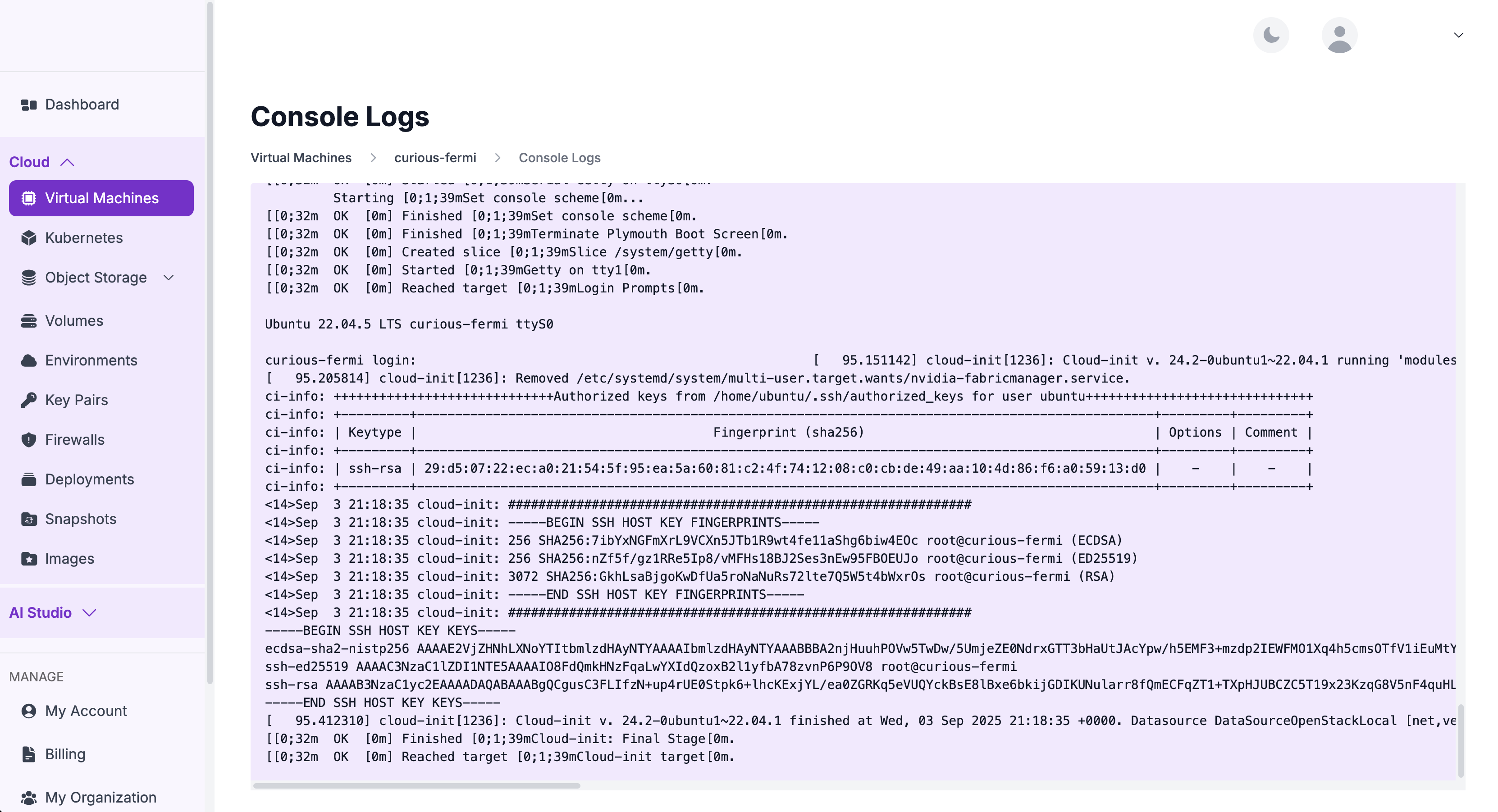
The following details can be found in the console logs:
- Storage: device discovery, fsck results, and mount status.
- Networking: interface config, IPs/routes, DNS, and network-online readiness.
- Cloud-init: Local, Network, Config, and Final stages with timestamps/datasource.
- Access: SSH host key generation and authorized keys for users.
- Services: daemon startups (QEMU agent, OpenSSH, snapd) and failures (e.g.,
nvidia-fabricmanager.service, mount units) with pointers tosystemctl status .... - Login: getty prompts (e.g.,
ttyS0,tty1) and targets likeSystem Initialization.