Cloud-Init Initialization Configuration
Use cloud-config and user data to manage a virtual machine's configuration at launch.
Cloud-init is the standard method for configuring a virtual machine at first boot. In Hyperstack, you provide a cloud-init script when you deploy a VM to automate setup tasks so the instance is ready to use as soon as it starts. This page covers the supported script formats, how the console checks your script before you deploy, and how to pass a script through the create virtual machine API.
For the full directive reference, see the official cloud-init documentation.
You can use a cloud-init script to automate common first-boot tasks, such as creating users, setting permissions, installing packages (for example, Docker), configuring SSH access, running commands, and starting or stopping services.
Add a cloud-init script
You add a cloud-init script in the Cloud-init Script section of the deployment form. Navigate to the Deploy New Virtual Machine page, click Configure Additional Settings to expand the advanced options, then scroll to the Cloud-init Script section.
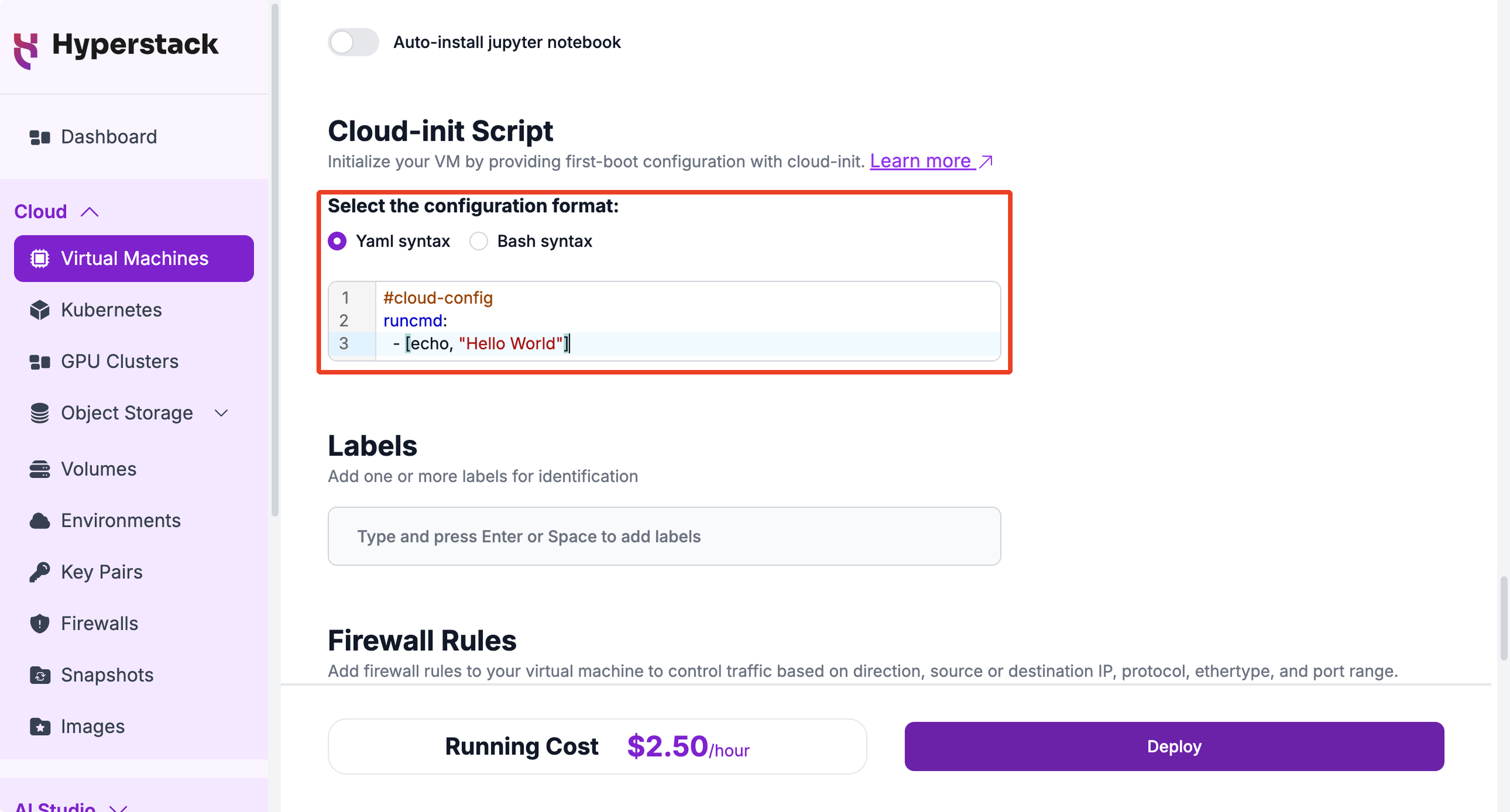
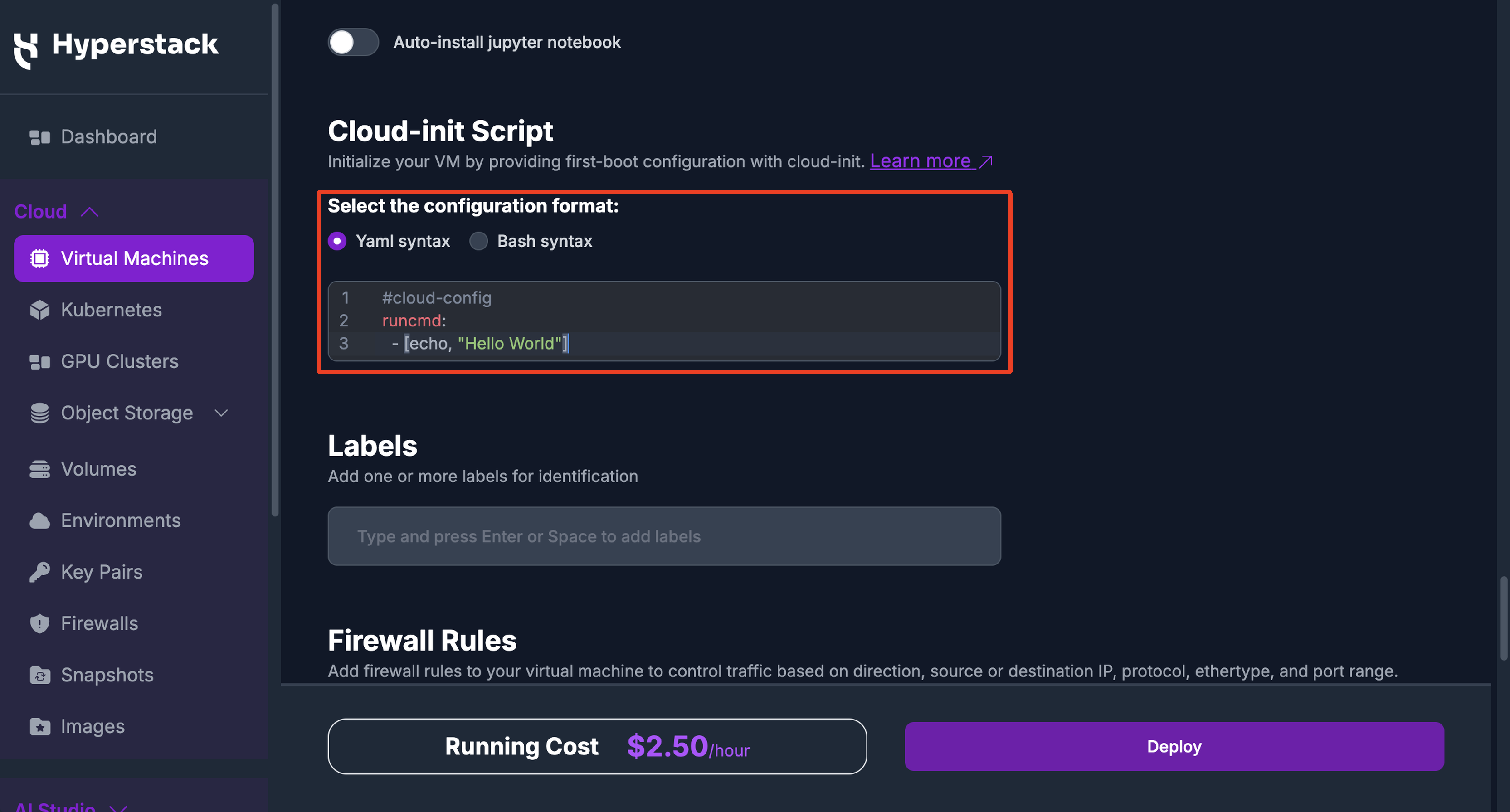
Choose the format your script is written in, Yaml syntax or Bash syntax, and enter your script in the editor. The script runs when the virtual machine first boots.
Script formats
Provide your initialization data in one of two formats: a cloud-config file written in YAML, or a Bash script. Select the matching format in the deployment form, or set the user_data field when you deploy through the API. The data runs when the virtual machine first boots.
Cloud-config
Cloud-config files are written in YAML, a human-readable data serialization format. A cloud-config file uses directives to describe the configuration of a virtual machine. YAML is indentation-sensitive, so you must follow its indentation rules precisely to avoid a malformed file that cloud-init cannot run.
The first line of a cloud-config file must be the identifier #cloud-config, on its own line, so cloud-init recognizes the file. The rest of the configuration follows on the lines below, and the file must be provided when the server is created.
The following cloud-config example prepares a fresh GPU instance for machine learning work. It:
- Updates the package index and upgrades installed packages.
- Installs
nvtop(a live GPU activity monitor), along withtmux,htop,git, andpython3-venv. - Creates a
workspacedirectory owned by the defaultubuntuuser. - Prints a confirmation line to the console log when setup finishes.
#cloud-config

# Update the package index and upgrade installed packages
package_update: true
package_upgrade: true

# Install tools commonly used for machine learning work on a GPU instance
packages:
  - nvtop
  - tmux
  - htop
  - git
  - python3-venv

# Create a project workspace owned by the default user
runcmd:
  - mkdir -p /home/ubuntu/workspace
  - chown ubuntu:ubuntu /home/ubuntu/workspace

# Print a confirmation line to the console log when setup finishes
final_message: "The system is ready after $UPTIME seconds."
Bash scripts
A Bash script is another common way to pass user data to a virtual machine. The file must begin with a #!/bin/bash line to be a valid Bash script.
The following Bash example installs the same GPU and machine learning tools, then records the GPU status to a log file so you can confirm the driver is available:
#!/bin/bash
# Update the package index and install useful GPU and ML tools
apt-get update
apt-get install -y nvtop tmux htop

# Save the GPU status at first boot to a log file
nvidia-smi > /var/log/gpu-status.log 2>&1
Validating your cloud-init script
As you type in the Cloud-init Script editor, the console checks your script and flags problems inline, so you can correct them before you deploy. It reports two kinds of feedback:
- Errors mark invalid syntax that cloud-init cannot parse. The console underlines the affected text, marks the line in the gutter, and shows a message identifying the line and the cause, such as
Line 4: Invalid YAML: bad indentation of a mapping entry. - Warnings flag advisory issues that are not syntax errors. For example, the console warns when your script looks like the other format (
This looks like a Bash script, but "Yaml syntax" is selected), or when a YAML script is missing the#cloud-configidentifier on its first line.
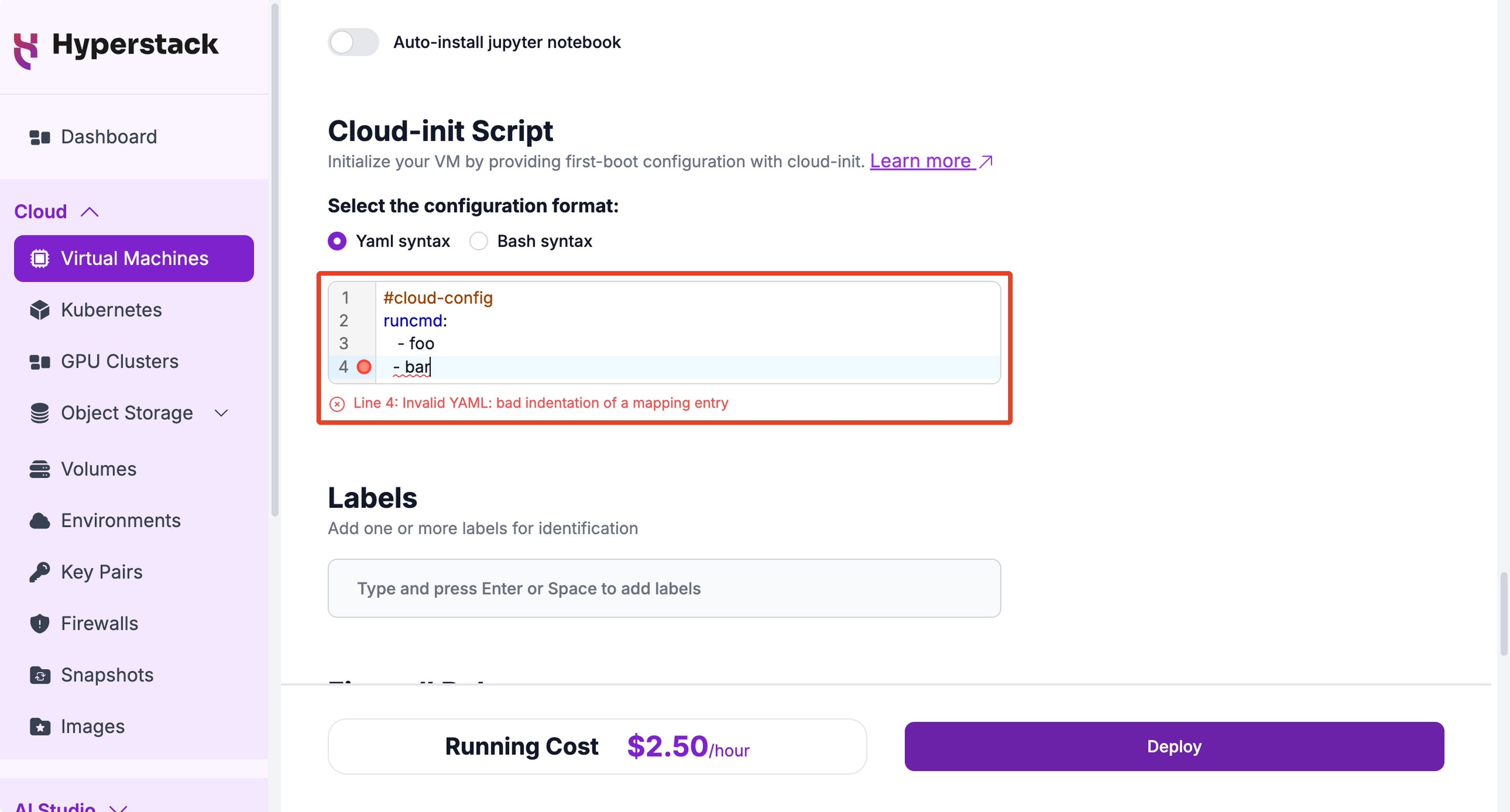
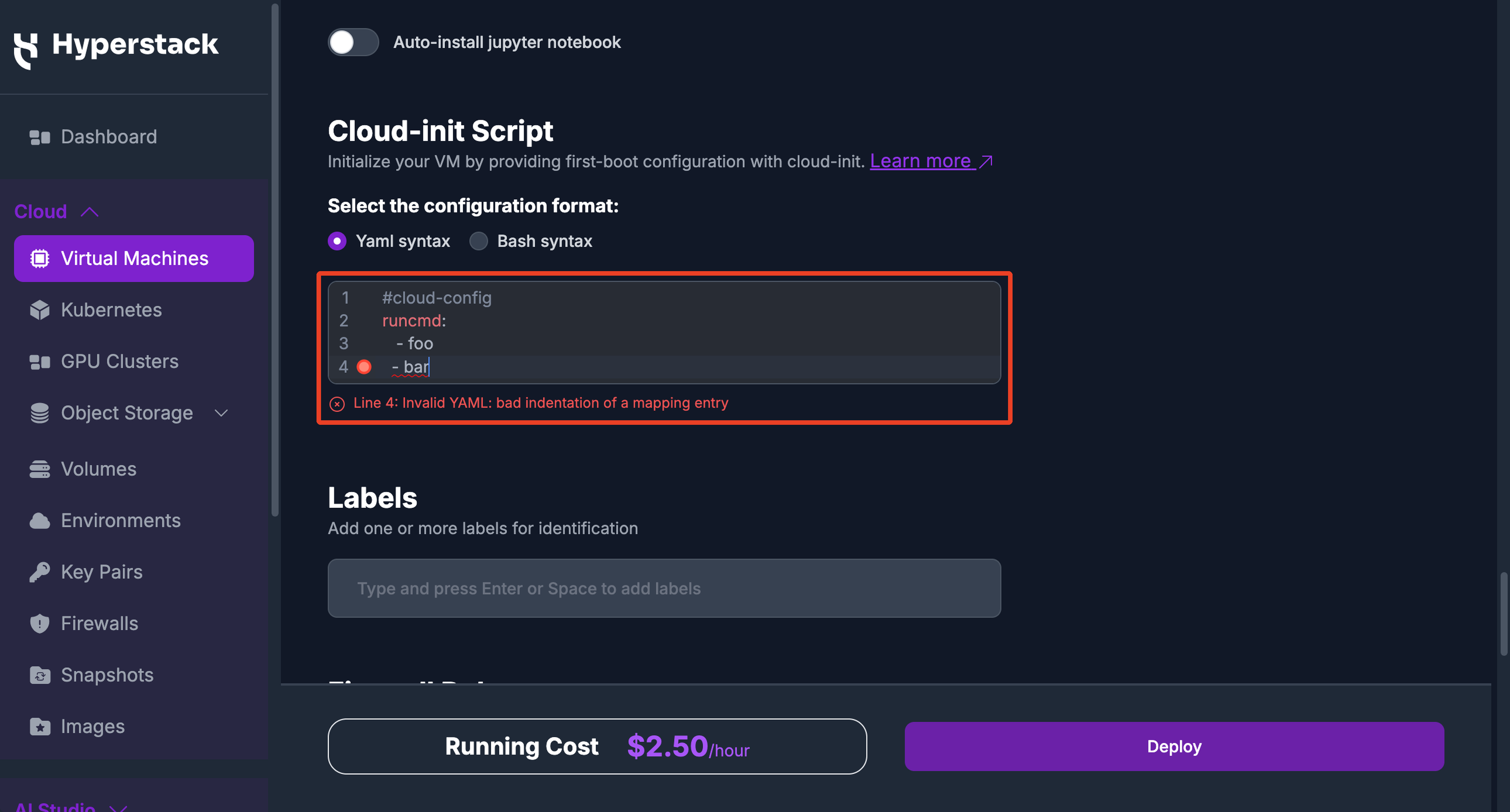
This validation is advisory. It helps you catch mistakes, but it does not block deployment: the virtual machine still deploys with the script exactly as you wrote it. Review any reported errors before you deploy, and if you deploy through the API, validate your script before you submit it.
Script size limit
Your cloud-init script is Base64 encoded when you submit it, and the encoded value cannot exceed 65,535 bytes. Base64 encoding adds about a third to the size of your script, so you reach the limit well before your script is 65,535 characters long. The API checks the script's size, not its syntax.
A script over the limit is rejected before the virtual machine is created, and the response identifies the user_data field:
{
  "status": false,
  "errors": {
    "user_data": [
      "user_data is too long: base64-encoded value must not exceed 65535 bytes."
    ]
  }
}
If your configuration is too large to fit, keep the script itself small and have it download the larger files at first boot with runcmd.
Initializing a virtual machine using cloud-config via API
POST/core/virtual-machinesTo provide a cloud-init script through the API, set the user_data field in the request body of the create virtual machine endpoint. The script runs when the virtual machine first boots, applying the configuration you specified.
First, create the cloud-init file, user_data.txt:
cat << EOF > user_data.txt
#cloud-config

package_update: true
packages:
  - nvtop
  - tmux

runcmd:
  - mkdir -p /home/ubuntu/workspace
  - chown ubuntu:ubuntu /home/ubuntu/workspace
EOF
Then convert the file to a single-line JSON string and pass it in the user_data field of the create request:
# First convert the user data to a single line JSON string
user_data_content=$(jq -Rs '.' < user_data.txt)

# Then use the API to create a VM with the user data
curl --location 'https://infrahub-api.nexgencloud.com/v1/core/virtual-machines' \
--header 'Content-Type: application/json' \
--header "api_key: $API_KEY" \
--data '{
    "name": "cloud-init-example",
    "environment_name": "default-CANADA-1",
    "image_name": "Ubuntu Server 22.04 LTS R550 CUDA 12.4 with Docker",
    "flavor_name": "n3-A100x1",
    "key_name": "default-CANADA-1-key",
    "count": 1,
    "assign_floating_ip": true,
    "user_data": '"$user_data_content"'
}'
At launch, this cloud-config script updates the package index, installs nvtop and tmux, and creates a workspace directory for the default user. For the full list of request parameters, see the create virtual machine API reference.
Maintain precise indentation in your cloud-config YAML. Incorrect indentation produces a malformed file that cloud-init cannot run.